Cascades
Cascades let you chain multiple general rules together so that one action creates an entire hierarchy of work items. Instead of running rules one level at a time, a cascade runs a “master” rule first, then runs additional rules on the items that were just created — and keeps going through as many levels as you define.
Think of it this way: if general rules create one level of child work items, cascades create multiple levels in a single go.
When to use cascades
Cascades are perfect when you have a repeatable multi-level structure. Some common scenarios:
- Epic → Features → User Stories → Tasks — One click on an Epic and the entire hierarchy is built out.
- Feature → Design Story + Development Story → Tasks for each — A two-level hierarchy under a Feature.
- Any fixed structure where the same rules should apply every time at each level.
If you only need one level of child work items (like creating Tasks directly under a User Story), a single general rule is all you need. Cascades are for when you need multiple levels.
How cascades work
A cascade has two key parts:
1. Master rule
The master rule is a general rule that runs first, on the work item you open. It creates the first level of children.
For example, if you open an Epic, the master rule might be “Features for Epic” — which creates Feature work items under the Epic.
2. Stages
After the master rule runs, the cascade moves through its stages in order. Each stage contains one or more general rules, and those rules run on every work item created in the previous step.
- Stage 1 runs on the items created by the master rule.
- Stage 2 runs on the items created by Stage 1.
- Stage 3 runs on the items created by Stage 2.
- And so on.
Example flow:
| Step | What runs | What it creates |
|---|---|---|
| Master rule | ”Features for Epic” runs on the Epic | 3 Features |
| Stage 1 | ”Stories for Feature” runs on each Feature | User Stories under each Feature |
| Stage 2 | ”Tasks for Story” runs on each User Story | Tasks under each User Story |
The result: one click on an Epic creates Features, then User Stories under each Feature, then Tasks under each User Story.
Here is the same flow shown as a level-by-level cascade:
| Level | Input (runs on) | What runs | Output (creates) |
|---|---|---|---|
| Start | Epic | — | Epic (you open this) |
| Master rule | Epic | ”Features for Epic” | Features |
| Stage 1 | Each Feature | ”Stories for Feature” | User Stories |
| Stage 2 | Each User Story | ”Tasks for Story” | Tasks |
So in one run: Epic → (master rule) → Features → (stage 1) → User Stories → (stage 2) → Tasks.
Creating a cascade
Prerequisites
Before you create a cascade, you need to have the general rules in place. The cascade doesn’t define what to create — it chains existing general rules together. So make sure you have:
- A general rule to use as the master rule (matches the work item type you’ll start from).
- General rules for each stage (each one matches the work item types produced by the previous step).
Step by step
-
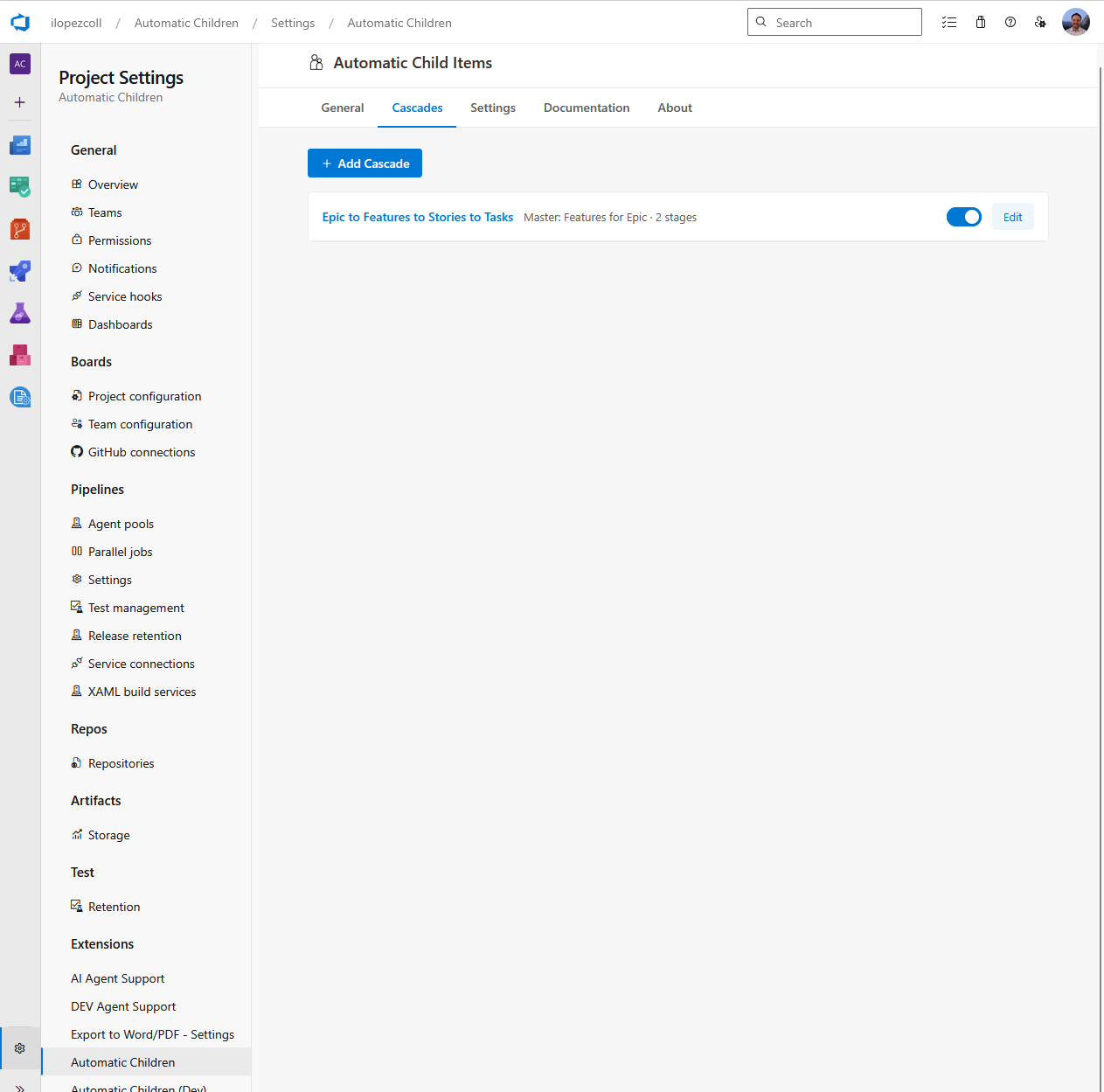
Go to Project Settings > Automatic Children and open the Cascades tab.
-
Click Add Cascade.
-
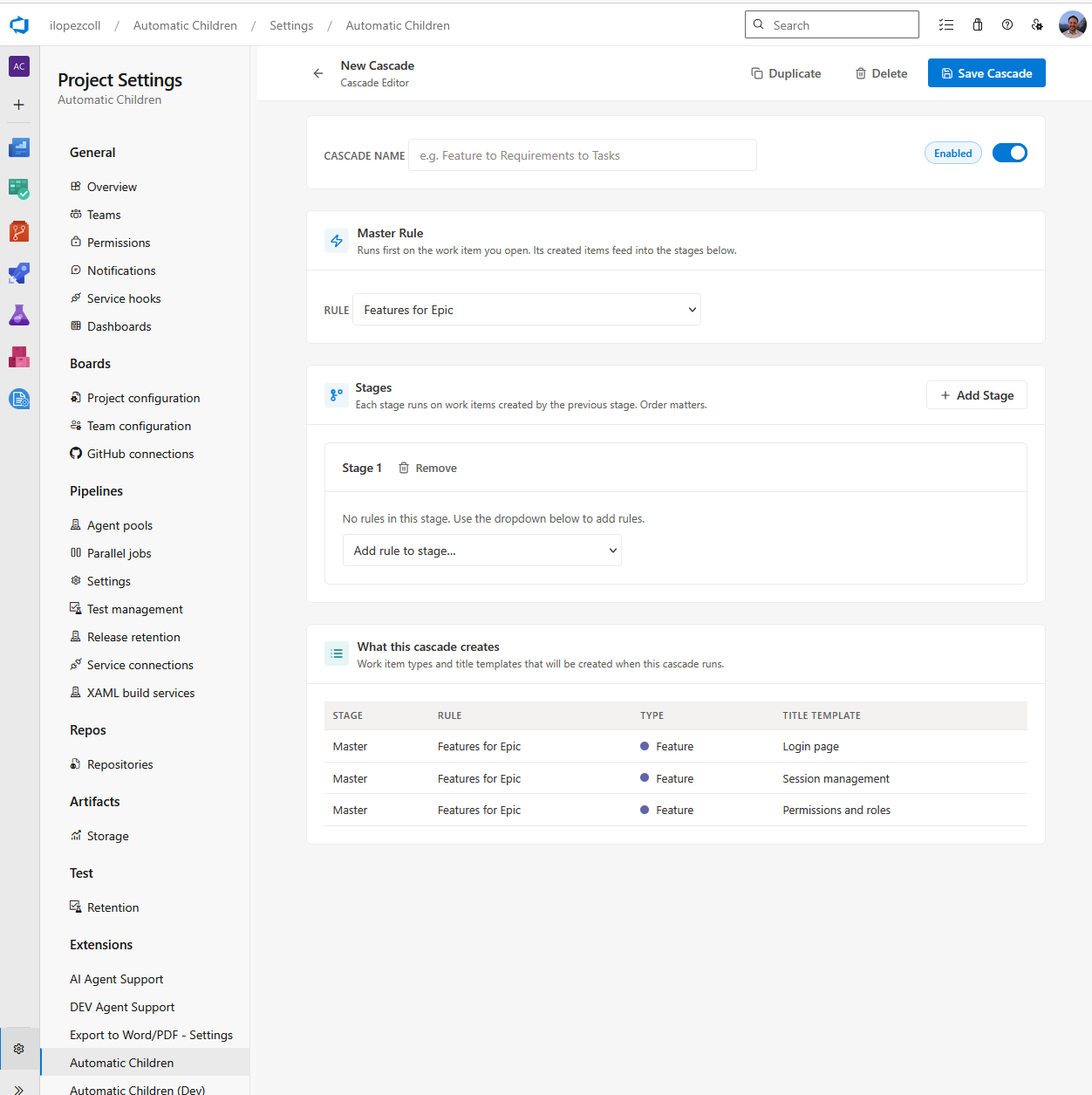
Cascade name — Give it a descriptive name, like “Epic to Features to Stories to Tasks” or “Full project hierarchy.”
-
Enable / Disable — Make sure the cascade is enabled if you want it to appear when running the extension. You can toggle this at any time.
-
Master rule — Pick the general rule that should run first. The dropdown shows all your general rules. Choose one that matches the work item type you’ll start from (e.g., a rule that triggers on Epics).
You’ll see a helpful note: “Runs first on the work item you open. Its created items feed into the stages below.”
-
Stages — Define the stages that run after the master rule.
- Click Add Stage to create a new stage.
- Within each stage, use the “Add rule to stage…” dropdown to pick which general rules should run on the items from the previous step.
- You can add multiple rules to a single stage (they all run on the same set of parent items).
- Add more stages if you need more levels in your hierarchy.
You’ll see a note: “Each stage runs on work items created by the previous stage. Order matters.”
-
Click Save.
Validation
The extension validates your cascade when you save it:
- Master rule is required — You must select a master rule.
- At least one stage — A cascade needs at least one stage (otherwise it’s just a regular rule run).
- Each stage needs at least one rule — Every stage must have at least one general rule assigned.
- No duplicate rules — The same general rule can’t appear more than once across the entire cascade (master + all stages).
- Type compatibility — The extension checks that work item types line up across stages. For example, if the master rule creates Features, then Stage 1’s rules must be configured to trigger on Features. If there’s a mismatch, you’ll see a validation error.
Tip: If validation fails, check that your general rules’ work item type triggers match the types produced by the previous stage. For example, if Stage 1 creates User Stories, Stage 2’s rules should trigger on User Story.
Running a cascade
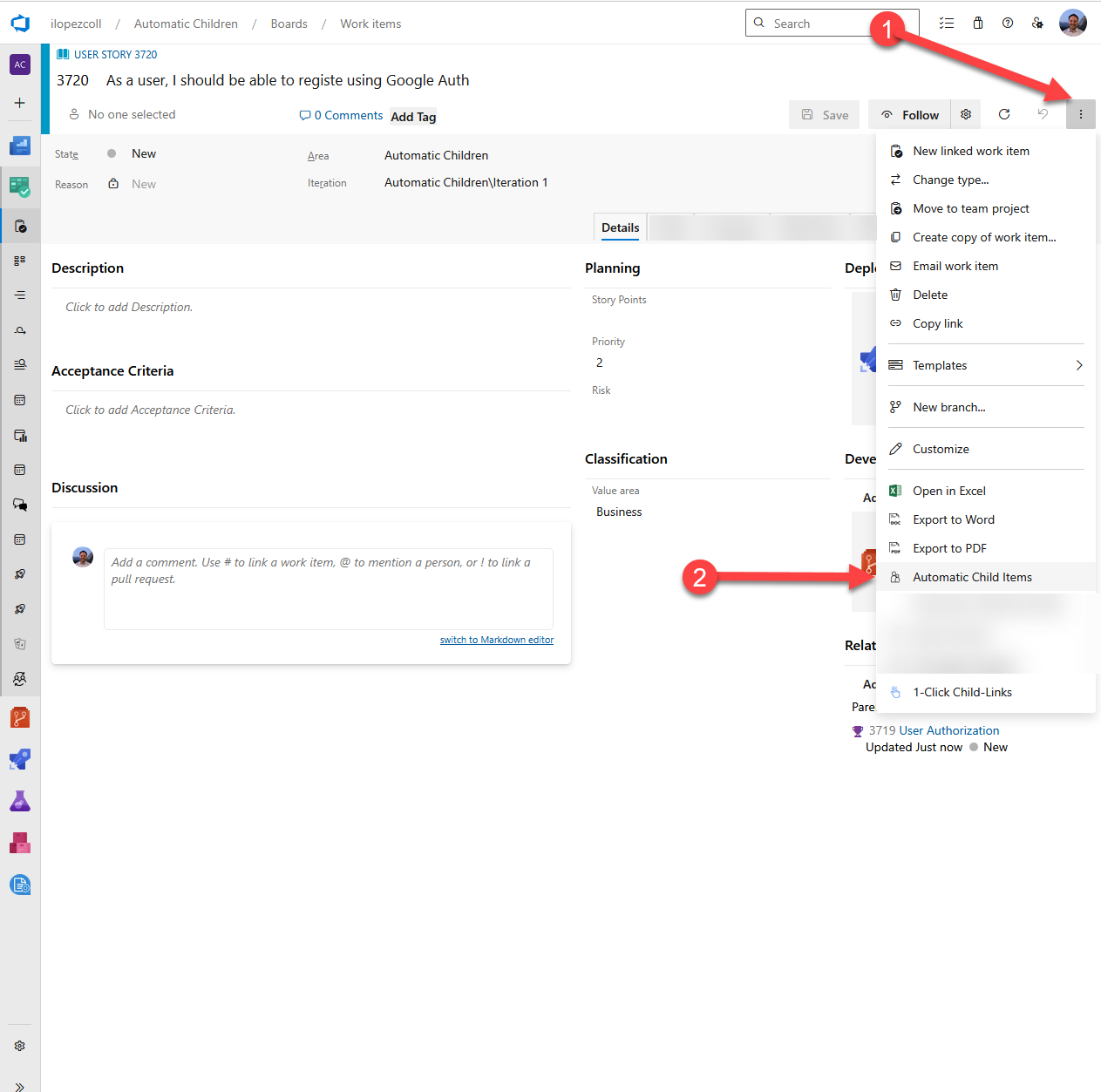
When you open Automatic Child Items from a work item and your project has at least one cascade:
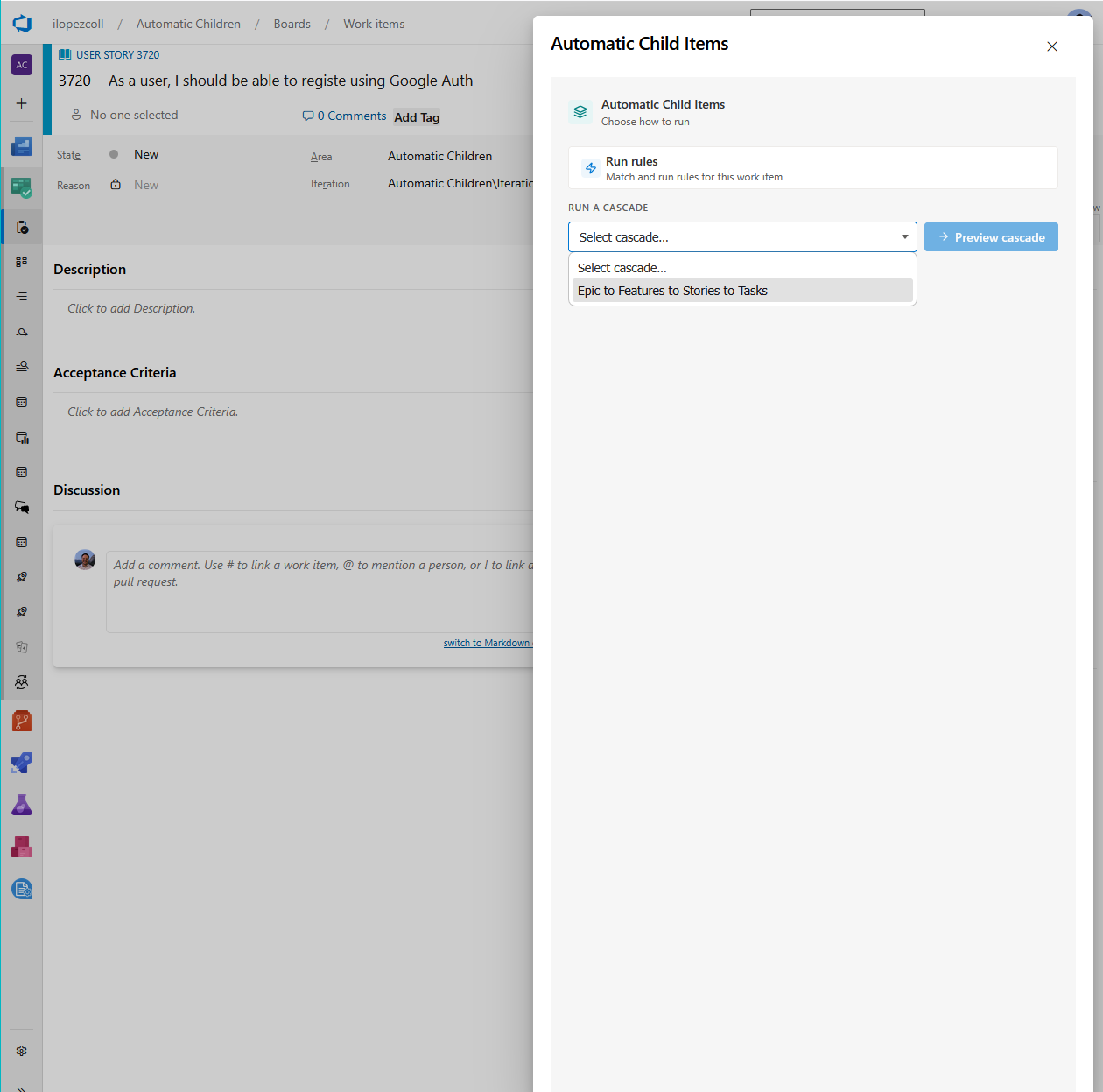
- The side panel gives you a choice: Run rules or Run a cascade.
- Choose Run a cascade and select the cascade you want from the dropdown.
- Click Preview cascade to see the full hierarchy that would be created — broken down by stage.
- Review the preview. Just like with regular rule runs, you’ll see duplicate warnings if any items already exist.
- Click Create to build the entire hierarchy.
The extension runs the master rule first, waits for those items to be created, then runs each stage in sequence on the newly created items.
Enable / Disable
Cascades have their own enable/disable toggle, independent of the general rules they reference. When a cascade is disabled:
- It won’t appear as an option in the side panel.
- The general rules it references are not affected — they can still be used individually or in other cascades.
However, if you disable a general rule that is used as a master rule or in a stage, the cascade that depends on it will also be disabled — since it can’t run without that rule.
On the free trial, you can enable up to 3 cascades per project. Cascades beyond the limit are automatically disabled. Upgrade your plan to remove this restriction.
Managing cascades
The cascade list
On the Cascades tab, you’ll see all your cascades listed with:
- The cascade name.
- An enable/disable toggle.
- An Edit button to reopen the cascade editor.
Editing a cascade
Click Edit to change the master rule, add or remove stages, or rename the cascade. Changes take effect immediately.
Deleting a cascade
You can delete a cascade without affecting the general rules it references. The rules remain available for individual use or in other cascades.
Summary
| Part | Description |
|---|---|
| Name | A descriptive label for the cascade. |
| Enabled | Only enabled cascades appear in the side panel. |
| Master rule | The general rule that runs first on the work item you open. |
| Stages | Ordered list of stages. Each stage contains general rules that run on items from the previous step. |
| Type compatibility | Work item types must line up: each stage’s rules must trigger on the types produced by the previous step. |
| Preview | See the full hierarchy before creating — organized by stage. |
| Trial limit | Free trial allows up to 3 cascades per project. |