Getting Started
This guide walks you through installing the extension, exploring your license, and creating your first general rule. By the end, you’ll have Automatic Children up and running in your Azure DevOps project.
Prerequisites
- Azure DevOps Services or Azure DevOps Server (both are supported).
- The extension uses Work Items (read and write), Extension data (write), and Graph (for looking up people) scopes. Your organization admin may need to approve the extension before it can be used.
Step 1: Install the extension
Only an administrator of your Azure DevOps organization can install extensions. If you’re not an admin, ask your admin to install it for you.
- Head over to the Visual Studio Marketplace and click Install.
- Choose the Azure DevOps organization where you want to install it.
- Once installed, the extension is available across the entire organization.
Screenshot placeholder: Marketplace page for Automatic Children showing the Install button.
Step 2: Explore the Organization Settings
After installation, head to your Organization Settings to check out the licensing options.
- Open your Azure DevOps organization (the top level, not a specific project).
- Click Organization Settings (gear icon at the bottom-left).
- Look for Automatic Children in the settings list and open it.
Here you’ll see the available plans and your current subscription status. By default, you start on a free trial that gives you limited functionality — you can create up to 3 general rules and 3 cascades per project, which is a great way to explore the extension before committing to a paid plan.
If you’d like to unlock unlimited rules and more projects, you can upgrade your plan right from this page. You can also assign projects to your license — this determines which projects in your organization get the full, unrestricted experience.
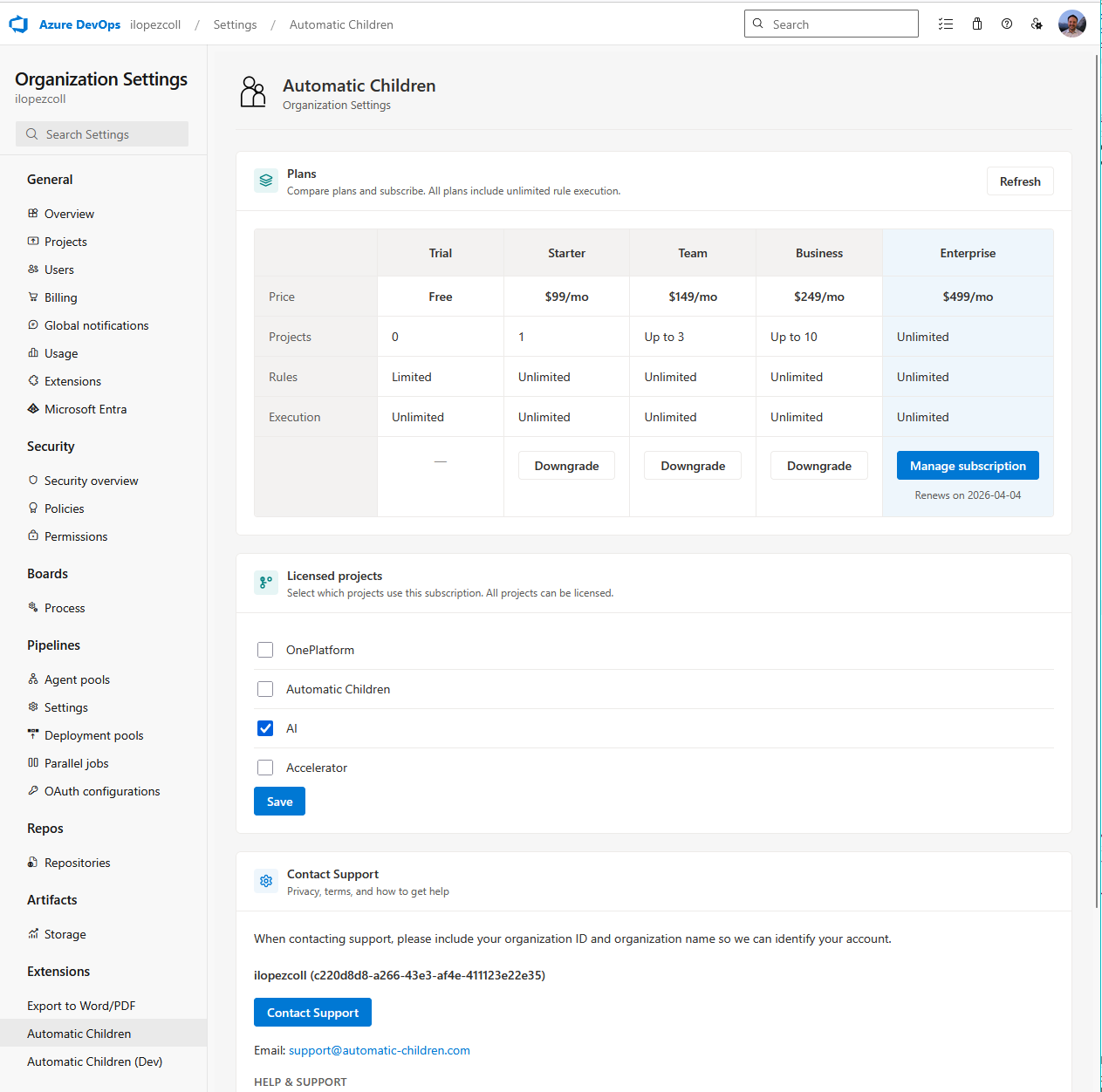
For more details on plans and pricing, see Licensing.
Step 3: Open the Project Settings
Once you’ve explored the organization settings, navigate to a project where you want to set up your rules.
- Open your Azure DevOps project.
- Go to Project Settings (gear icon at the bottom-left).
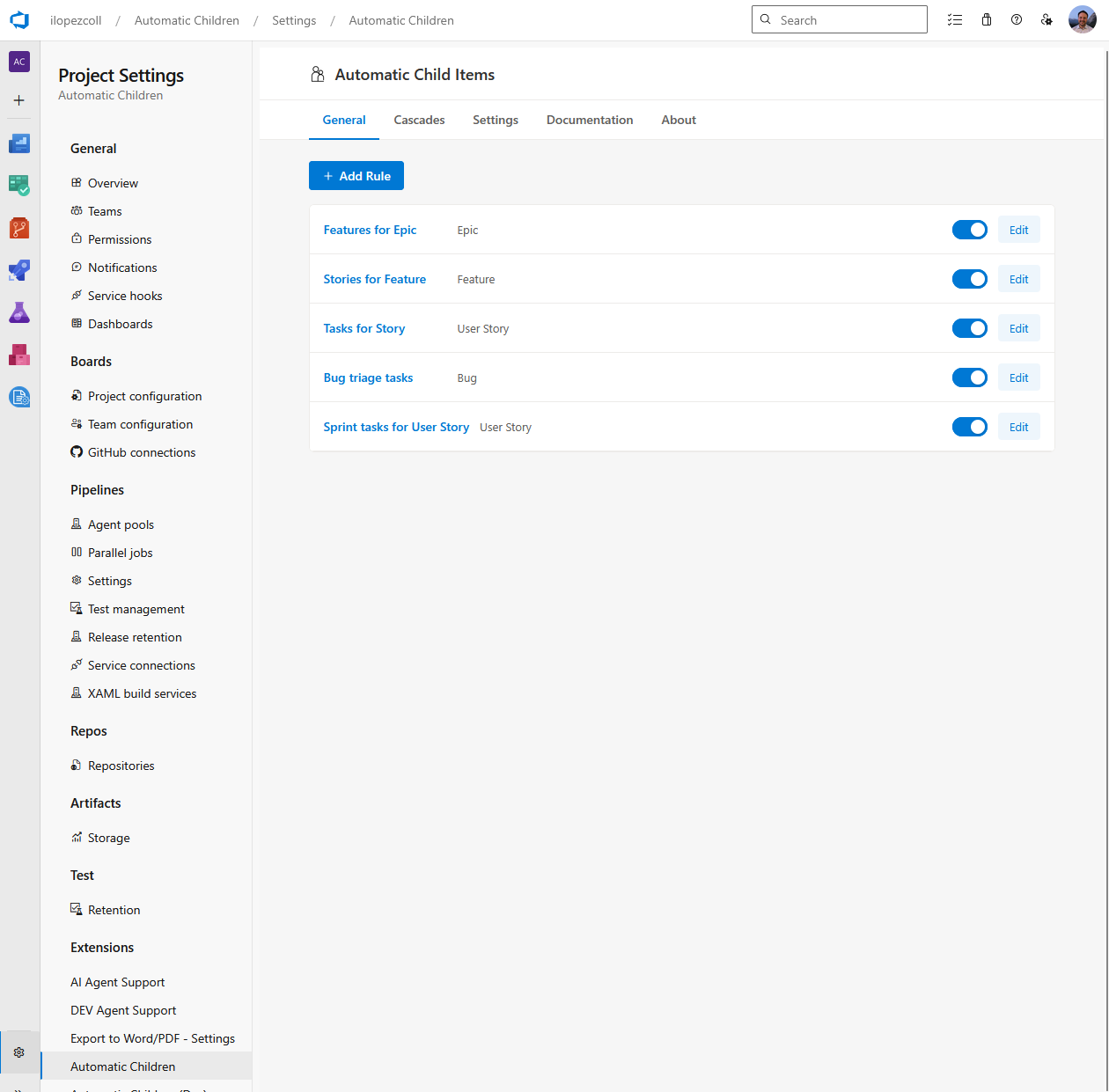
- Under the settings list, find and click Automatic Children.
You’ll land on the extension’s hub, which has several tabs. The two most important ones are:
- General — This is where you create and manage your general rules. General rules are the building blocks of the extension. Each one defines what child work items to create when you run the action on a parent work item.
- Cascades — This is where you create and manage your cascades. Cascades chain multiple general rules together to build multi-level hierarchies (like Epic → Feature → User Story → Task) in a single action.
These two — general rules and cascades — are the core pillars of Automatic Children. Everything else builds on top of them.
You’ll also see a Settings tab (for exporting, importing, and refreshing your project metadata cache), a Documentation tab, and an About tab.
Step 4: Add your first general rule
Let’s create a simple general rule that automatically creates a Task whenever you run the extension on a User Story.
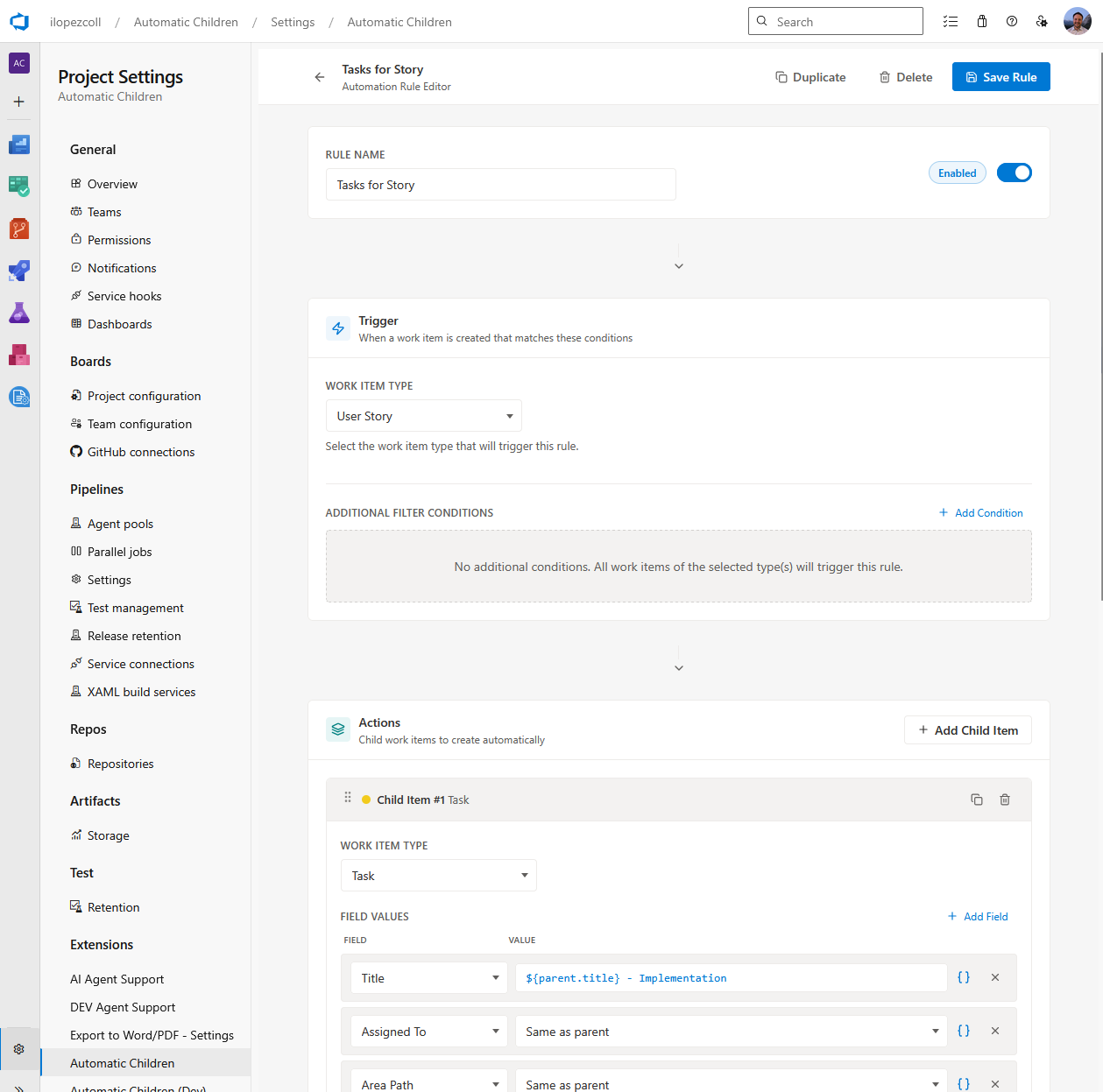
- On the General tab, click Add Rule.
- Give it a name — something descriptive like “Tasks for User Story”.
- Make sure the rule is Enabled (you’ll see a toggle).
- Under the Trigger section (“When a work item matches these conditions”):
- Select User Story as the work item type.
- You can optionally pick specific states (like New or Active) if you only want the rule to apply in certain states. For now, leave this open to match any state.
- Under the Actions section (“Child work items to create automatically”):
- Click Add Child Item.
- Choose Task as the child work item type.
- In the field mappings, you’ll see the Title field is already there (it’s required). Set it to something like
Task for {{System.Title}}— the{{System.Title}}part is a placeholder that will automatically pull the parent’s title when the child is created. - Want to add more fields? Click Add Field and pick any field from the dropdown. You can set literal values or use placeholders for any of them.
- Click Save.
Your first general rule is ready! You can always come back to edit it, add more child items, or add conditions to make it more specific.
Tip: You don’t have to memorize placeholder values. Each field row has a placeholder button (it looks like curly braces). Click it and a dropdown will open showing all the available parent fields you can reference — just pick the one you want and it’s inserted for you.
Step 5: Run from a work item
Now let’s see it in action.
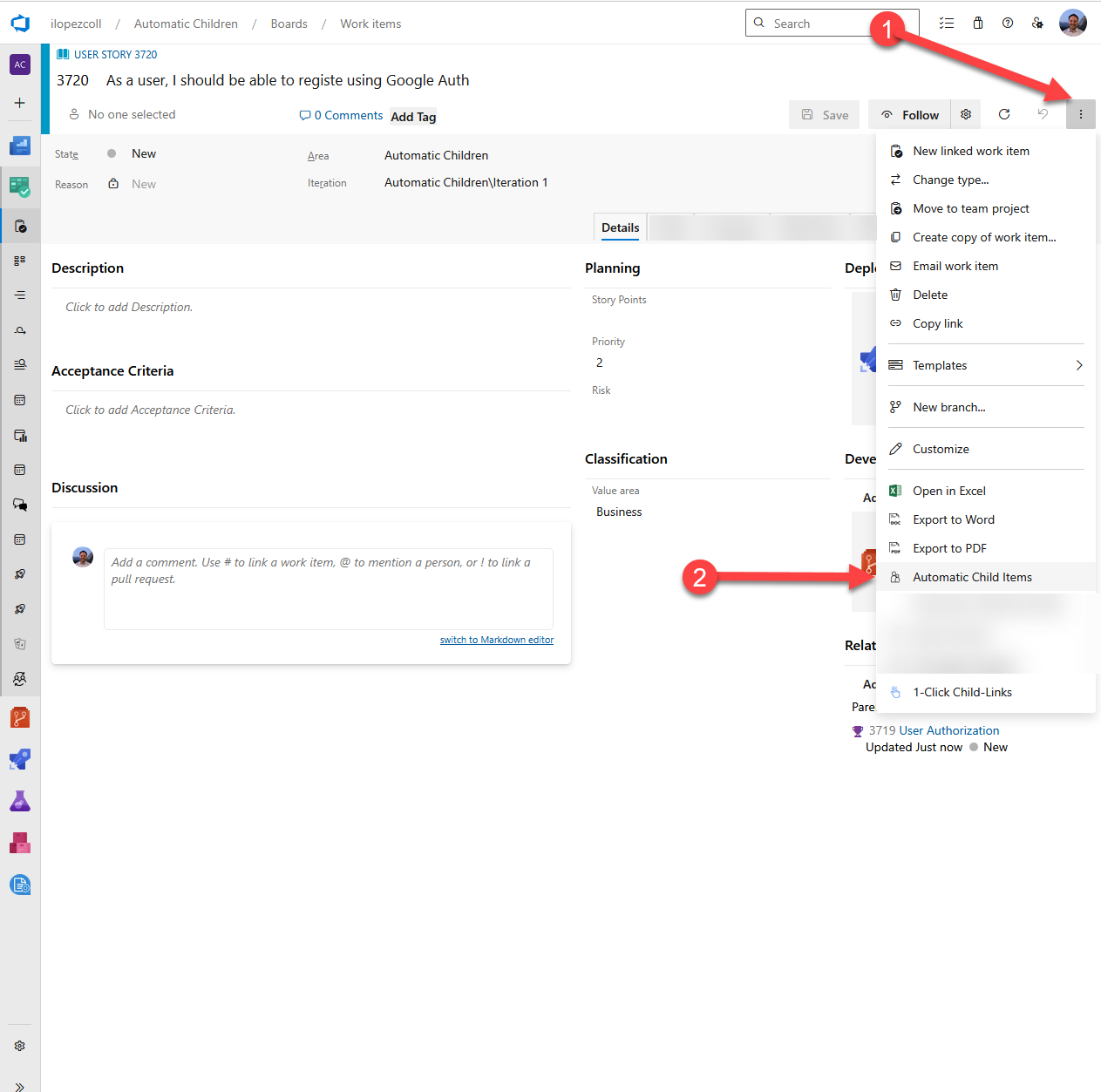
- Go to Boards and open a work item that matches your rule — in our case, any User Story.
- Click the … (context menu) on the work item.
- Choose Automatic Child Items.
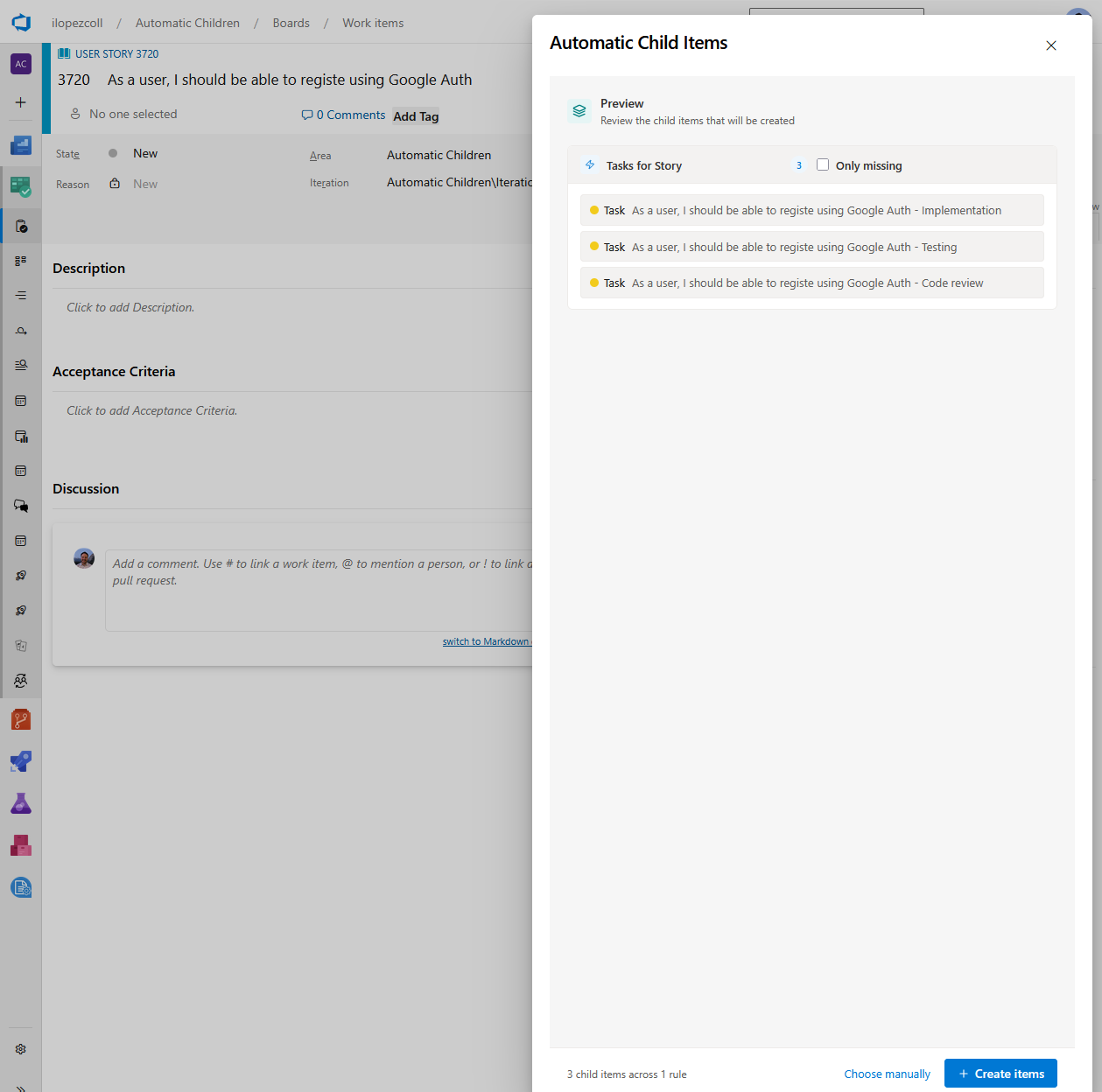
- A side panel opens. You’ll see Run rules with a preview of the child work items that will be created based on your matching rules.
- Check the preview — it shows you exactly what will be created, including the resolved title (with the parent’s actual title filled in).
- If everything looks good, click to create the child work items. They’ll be created in Azure DevOps and automatically linked as children of the parent work item.
If a child with the same type and title already exists, the extension will show you a duplicate warning so you can decide whether to create it anyway or skip it. You can also toggle Only missing to skip items that already exist.
Next steps
Now that you’ve created your first general rule and seen it in action, here’s what to explore next:
- General Rules — Learn about all the options available when creating general rules, including conditions, field mappings, and more.
- Cascades — Learn how to chain general rules together to create multi-level hierarchies.
- Multi-select work items — Run Automatic Child Items on multiple selected work items from the backlog or query results.
- Placeholders — Understand how to reference parent fields in your child work items.
- Examples — See practical, real-world examples you can recreate in your own projects.