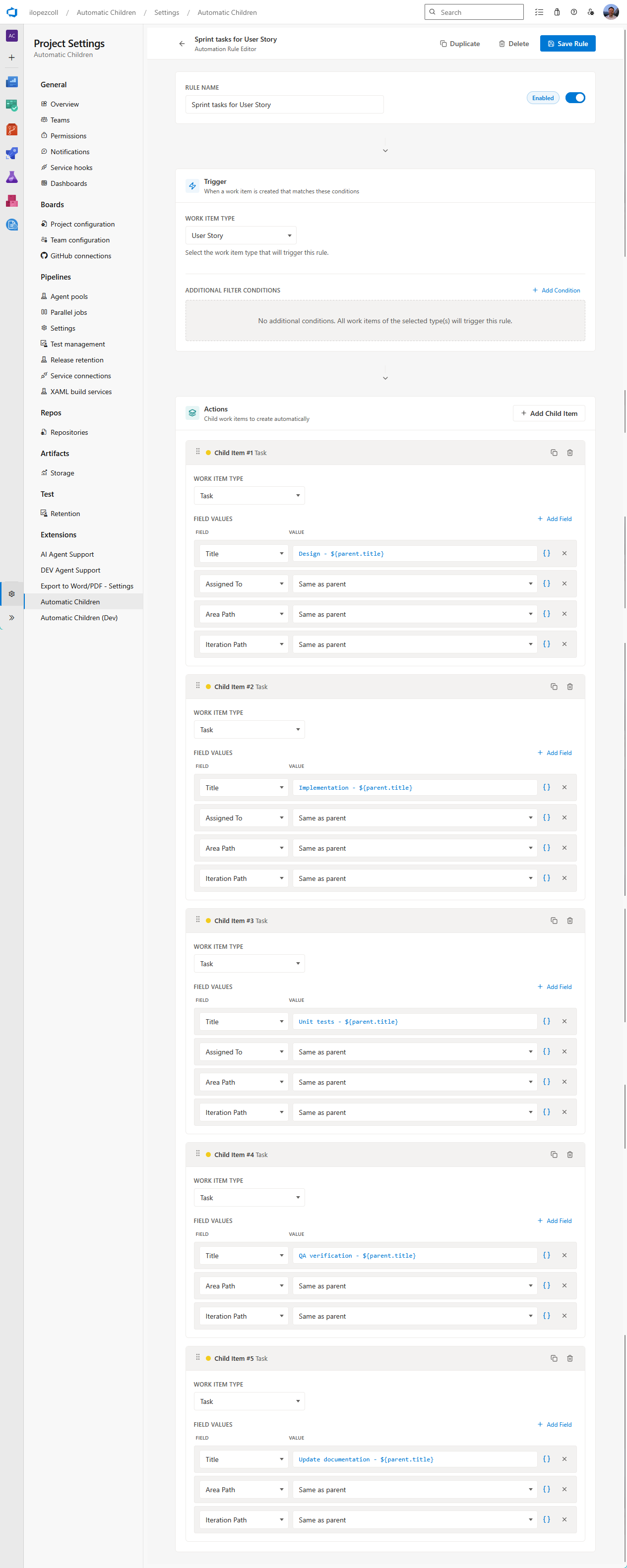
Example: Sprint planning template
When your team picks up a User Story for a sprint, there’s usually a standard set of tasks that need to happen: design, implementation, testing, documentation, and so on. This example shows how to create a general rule that generates those tasks automatically, so your team has a consistent starting point for every User Story.
This example uses a single general rule — perfect for creating a standard checklist of Tasks under a User Story.
Download the file above and import it in Project Settings > Automatic Children > Settings > Import to get this rule in your project.
What we’re building
When you run the rule on a User Story, the extension creates:
User Story: "As a user, I want to reset my password"
├── Task: "Design - As a user, I want to reset my password"
├── Task: "Implementation - As a user, I want to reset my password"
├── Task: "Unit tests - As a user, I want to reset my password"
├── Task: "QA verification - As a user, I want to reset my password"
└── Task: "Update documentation - As a user, I want to reset my password"
Setting up the general rule
Create a new general rule with these settings:
| Setting | Value |
|---|---|
| Name | Sprint tasks for User Story |
| Trigger: Work item type | User Story |
| Trigger: States | Active |
Setting the state trigger to Active means the rule only applies to User Stories that have been moved to Active — typically when the team commits to working on them in a sprint. This prevents accidentally creating Tasks for stories that are still in the backlog.
Child items
Add five Task child items:
| # | Child type | Title | Area Path | Iteration Path | Assigned To |
|---|---|---|---|---|---|
| 1 | Task | Design - {{System.Title}} | Same as parent | Same as parent | Same as parent |
| 2 | Task | Implementation - {{System.Title}} | Same as parent | Same as parent | Same as parent |
| 3 | Task | Unit tests - {{System.Title}} | Same as parent | Same as parent | Same as parent |
| 4 | Task | QA verification - {{System.Title}} | Same as parent | Same as parent | — |
| 5 | Task | Update documentation - {{System.Title}} | Same as parent | Same as parent | — |
Key details:
- Iteration Path is set to “Same as parent” so the Tasks land in the same sprint as the User Story.
- Assigned To on the first three tasks copies from the parent — the developer working on the story. QA verification and documentation are left unassigned for other team members to pick up.
Screenshot placeholder: Rule editor for “Sprint tasks for User Story” — showing User Story as the trigger type with state “Active”, and 5 Task child items with field mappings.
Adding a condition for a specific team
If different teams need different task templates, you can add a field condition to scope the rule. For example:
- Rule 1: “Sprint tasks (Backend)” — Trigger on User Story + State Active, with a condition: Area Path starts with
MyProject\Backend. - Rule 2: “Sprint tasks (Frontend)” — Same trigger, but condition: Area Path starts with
MyProject\Frontend, and different child Tasks (e.g., “UI implementation”, “Accessibility check”, “Browser testing”).
This way, each team gets their own tailored set of Tasks.
Screenshot placeholder: Rule editor showing a field condition group with Area Path “starts with” MyProject\Backend.
Running it
- Open a User Story that’s in state Active.
- Click the … context menu → Automatic Child Items.
- The preview shows the matching rule and the Tasks it will create.
- Click Create.
The five Tasks appear as children of the User Story, all in the same sprint, ready for your team to start working.
Screenshot placeholder: Side panel showing the preview for “Sprint tasks for User Story” — 5 Tasks listed with resolved titles and the Create button.
Variations you might try
- Add Priority mapping — Set all child Tasks to the same priority as the parent: add the Priority field and use the
{{Microsoft.VSTS.Common.Priority}}placeholder. - Include the story’s ID in titles —
#{{System.Id}} - Implementation - {{System.Title}}produces something like “#1234 - Implementation - As a user, I want to reset my password.” - Add a Description — Use placeholders to create a helpful description:
Subtask of User Story #{{System.Id}}: {{System.Title}}. - Combine with cascades — If your process goes Feature → User Story → Task, you could combine this rule with a “Stories for Feature” rule in a cascade, creating the full hierarchy from a Feature.
Screenshots