Licensing
Automatic Children comes with a free trial so you can explore the extension before subscribing. When you’re ready for more, there are paid plans to fit teams of all sizes. Licensing is managed at the organization level, and you choose which projects get full access.
Free trial
Every organization starts on the free trial — no payment required. The trial lets you try out the extension with some limits:
- Up to 3 general rules enabled per project.
- Up to 3 cascades enabled per project.
- Unlimited executions — you can run the extension as many times as you want.
You can still create more rules and cascades, but only 3 of each can be enabled at the same time. If you try to enable more, the extension will let you know you’ve hit the trial limit and suggest upgrading.
The trial doesn’t expire — you can use it as long as you like within these limits.
Plans and pricing
All plans are managed in Organization Settings > Automatic Children. Here’s what’s available:
| Trial | Starter | Team | Business | Enterprise | |
|---|---|---|---|---|---|
| Price | Free | $99/mo | $149/mo | $249/mo | $499/mo |
| Licensed projects | — | 1 | Up to 3 | Up to 10 | Unlimited |
| General rules | 3 per project | Unlimited | Unlimited | Unlimited | Unlimited |
| Cascades | 3 per project | Unlimited | Unlimited | Unlimited | Unlimited |
| Executions | Unlimited | Unlimited | Unlimited | Unlimited | Unlimited |
All paid plans include unlimited general rules, cascades, and executions. The main difference between plans is the number of projects you can license.
Licensed projects
When you subscribe to a paid plan, you choose which projects in your organization use the subscription. Only licensed projects get unlimited rules and cascades — projects that aren’t licensed fall back to the trial limits.
You manage licensed projects in Organization Settings > Automatic Children, in the Licensed projects section. It’s a simple list where you check the projects you want to license.
- Starter — 1 project.
- Team — Up to 3 projects.
- Business — Up to 10 projects.
- Enterprise — All projects are automatically licensed.
If you try to license more projects than your plan allows, the extension will let you know. You can always upgrade to a higher plan if you need more.
Managing your subscription
Everything related to your subscription lives in Organization Settings > Automatic Children:
- Subscribe — Choose a plan and complete the checkout. Payment is handled through Paddle (a secure payment processor).
- Upgrade — Move to a higher plan to get more licensed projects. A prorated charge is applied to your payment method.
- Downgrade — Move to a lower plan. The change takes effect at the end of your current billing period. Some licensed projects may be unassigned if you exceed the new plan’s limit.
- Manage subscription — Opens the customer portal where you can update your payment method, view invoices, or cancel your subscription.
- Refresh — If your license status seems stale, click the refresh button to re-fetch the latest information.
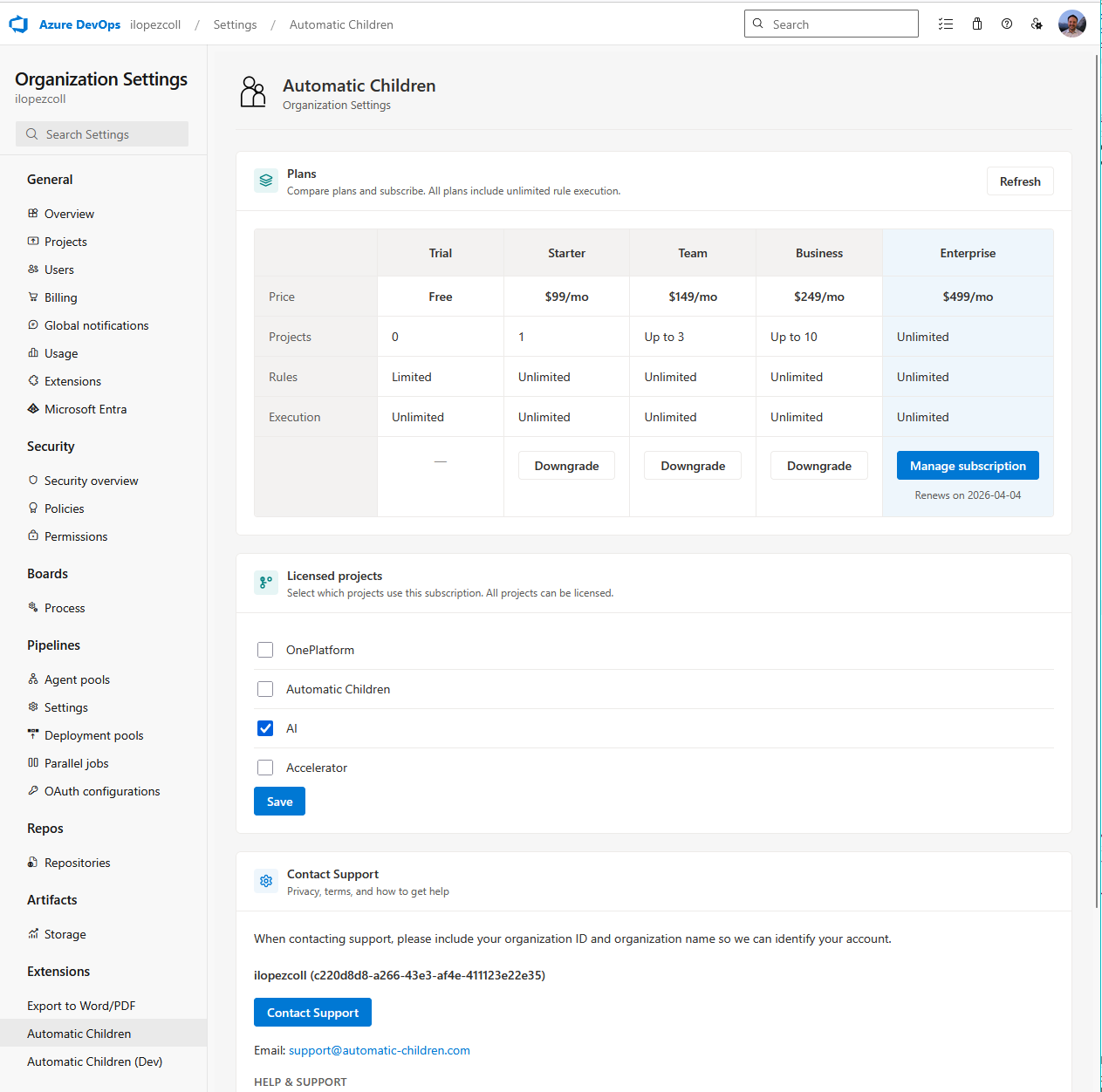
Where to check your license status
- Organization level: Go to Organization Settings > Automatic Children to see your current plan, subscription status, renewal date, and licensed projects.
- Project level: In Project Settings > Automatic Children, you’ll see a license card on the General, Cascades, and Settings tabs. It tells you whether the project is on the free trial or has a paid license, and shows any applicable limits.
If a project was previously licensed and then unassigned (e.g., after a downgrade), rules and cascades beyond the trial limit will be automatically disabled. Your configuration is preserved — just re-license the project or upgrade to re-enable them.
Summary
| What | Details |
|---|---|
| Free trial | 3 general rules, 3 cascades per project. Unlimited executions. No expiration. |
| Paid plans | Starter ($99/mo, 1 project) through Enterprise ($499/mo, unlimited projects). |
| Licensed projects | Choose which projects get full access. Unlicensed projects use trial limits. |
| Management | All subscription actions in Organization Settings > Automatic Children. |
| Payment | Handled through Paddle. Manage billing in the customer portal. |