Example: Bug triage workflow
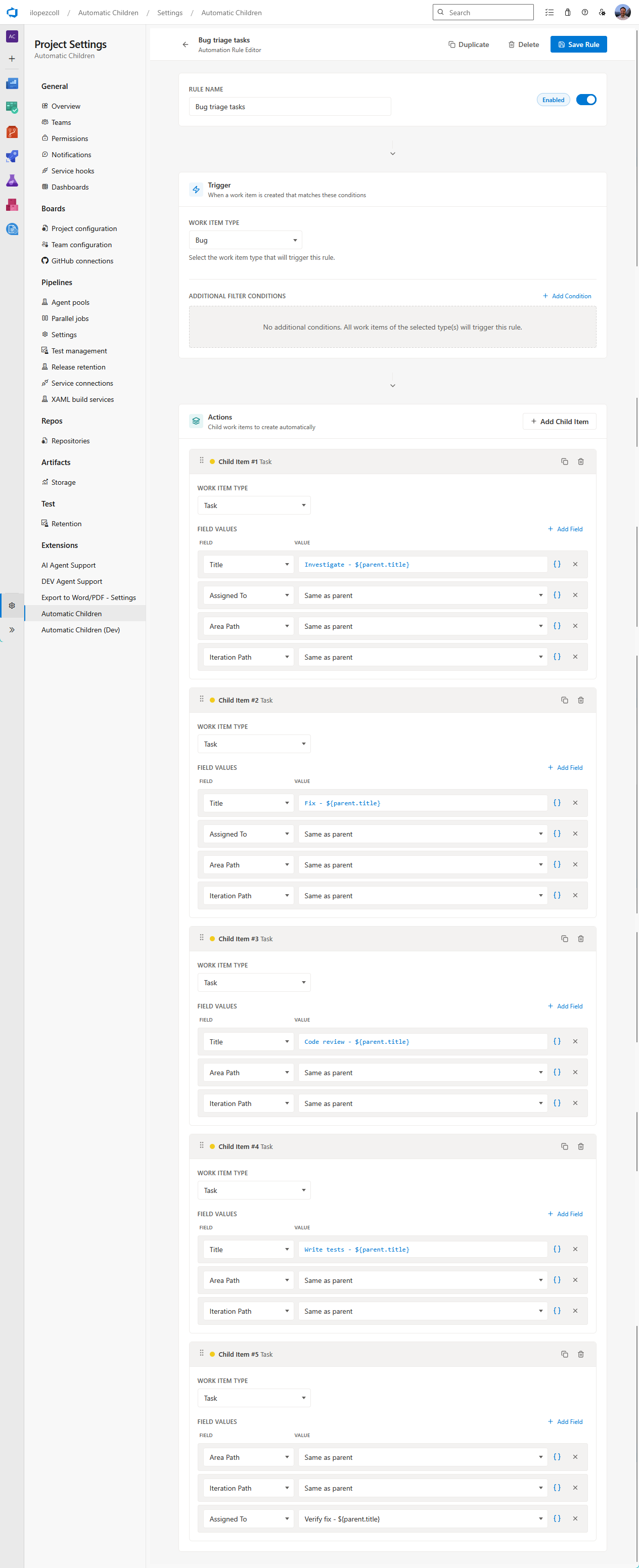
When a Bug is reported, many teams follow a standard process: investigate the issue, fix it, review the fix, and verify it’s resolved. Instead of manually creating those Tasks every time, you can set up a general rule to do it automatically.
This example uses a single general rule — no cascade needed, since we’re only creating one level of child work items.
Download the file above and import it in Project Settings > Automatic Children > Settings > Import to get this rule in your project.
What we’re building
When you run the rule on a Bug, the extension creates:
Bug: "Login fails when password contains special characters"
├── Task: "Investigate - Login fails when password contains special characters"
├── Task: "Fix - Login fails when password contains special characters"
├── Task: "Code review - Login fails when password contains special characters"
├── Task: "Write tests - Login fails when password contains special characters"
└── Task: "Verify fix - Login fails when password contains special characters"
Each Task inherits the Bug’s title, assigned person, area path, and iteration path — keeping everything organized and linked.
Setting up the general rule
Create a new general rule with these settings:
| Setting | Value |
|---|---|
| Name | Bug triage tasks |
| Trigger: Work item type | Bug |
| Trigger: States | New |
By setting the state trigger to New, this rule only applies to newly created Bugs. If you want it to work on Bugs in any state, just leave the state filter empty.
Child items
Add five Task child items:
| # | Child type | Title | Area Path | Iteration Path | Assigned To |
|---|---|---|---|---|---|
| 1 | Task | Investigate - {{System.Title}} | Same as parent | Same as parent | Same as parent |
| 2 | Task | Fix - {{System.Title}} | Same as parent | Same as parent | Same as parent |
| 3 | Task | Code review - {{System.Title}} | Same as parent | Same as parent | — |
| 4 | Task | Write tests - {{System.Title}} | Same as parent | Same as parent | — |
| 5 | Task | Verify fix - {{System.Title}} | Same as parent | Same as parent | — |
Notice how:
- The first two Tasks have Assigned To set to “Same as parent” — whoever is assigned to the Bug is also assigned to investigate and fix it.
- The last three Tasks leave Assigned To empty — a different team member (like a reviewer or QA) can be assigned later.
Running it
- Open a Bug work item that’s in state New.
- Click the … context menu → Automatic Child Items.
- The side panel shows the “Bug triage tasks” rule matched, with a preview of the 5 Tasks it will create — titles already resolved with the Bug’s actual title.
- Click Create.
All five Tasks are created and linked as children of the Bug.
Variations you might try
- Add a Severity condition — Only create the full triage workflow for high-severity Bugs. Add a field condition: Severity does not equal
4 - Low. - Different tasks for different teams — Create separate rules for different Area Paths. For example, “Bug triage (Backend)” with an Area Path condition and different task names.
- Include the Bug’s priority — Add Priority to the child’s title:
[P{{Microsoft.VSTS.Common.Priority}}] Investigate - {{System.Title}}to get something like “[P1] Investigate - Login fails when password contains special characters.” - Skip existing tasks — If you run the rule on a Bug that already has some of these Tasks, toggle “Only missing” in the preview to skip duplicates.
Screenshots