Example: Epic to Tasks hierarchy
This is one of the most common use cases for Automatic Children. Your team uses an Agile process with Epics, Features, User Stories, and Tasks, and you want to create the entire hierarchy from a single Epic with one click.
We’ll set this up using three general rules and one cascade that chains them together.
Download the file above and import it in Project Settings > Automatic Children > Settings > Import to get all the rules and the cascade from this example in your project.
What we’re building
When you run the cascade on an Epic, the extension will create:
Epic: "Implement authentication"
├── Feature: "Login page"
│   ├── User Story: "Login page - User can enter credentials"
│   │   ├── Task: "User can enter credentials - Implementation"
│   │   ├── Task: "User can enter credentials - Testing"
│   │   └── Task: "User can enter credentials - Code review"
│   └── User Story: "Login page - User can reset password"
│       ├── Task: "User can reset password - Implementation"
│       ├── Task: "User can reset password - Testing"
│       └── Task: "User can reset password - Code review"
├── Feature: "Session management"
│   └── ...
└── Feature: "Permissions and roles"
    └── ...
Step 1: Create the general rules
You’ll need three general rules, one for each level.
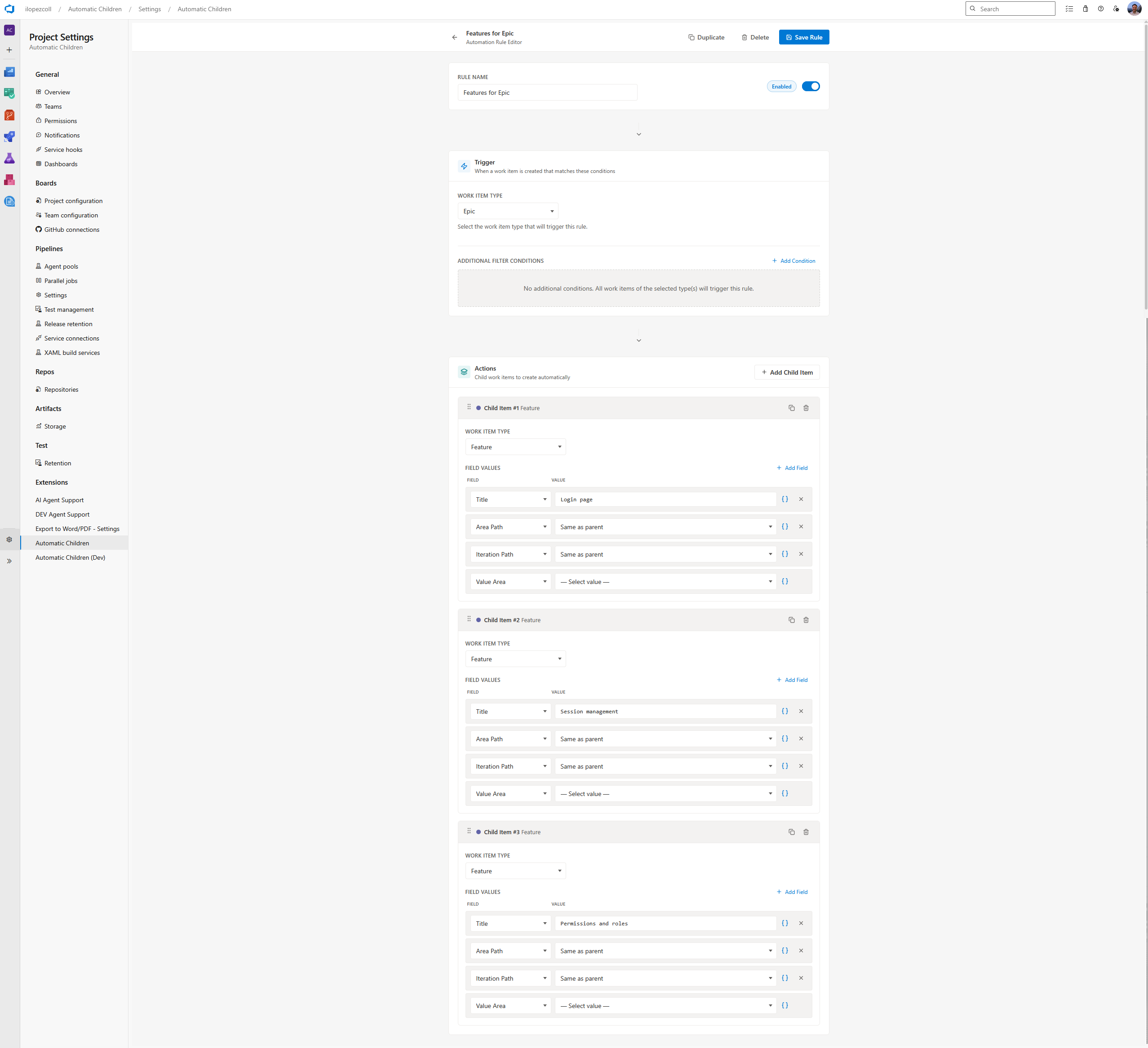
General Rule 1: “Features for Epic”
This rule creates Feature work items under an Epic.
| Setting | Value |
|---|---|
| Name | Features for Epic |
| Trigger: Work item type | Epic |
| Trigger: States | (leave empty — matches any state) |
Child items to create:
| Child type | Title | Area Path | Iteration Path |
|---|---|---|---|
| Feature | Login page | Same as parent | Same as parent |
| Feature | Session management | Same as parent | Same as parent |
| Feature | Permissions and roles | Same as parent | Same as parent |
General Rule 2: “Stories for Feature”
This rule creates User Stories under a Feature.
| Setting | Value |
|---|---|
| Name | Stories for Feature |
| Trigger: Work item type | Feature |
Child items to create:
| Child type | Title | Area Path | Iteration Path |
|---|---|---|---|
| User Story | {{System.Title}} - User can enter credentials | Same as parent | Same as parent |
| User Story | {{System.Title}} - User can reset password | Same as parent | Same as parent |
Notice how the child titles use the placeholder {{System.Title}} — this pulls the Feature’s title into each User Story title, keeping everything connected.
General Rule 3: “Tasks for Story”
This rule creates standard development Tasks under a User Story.
| Setting | Value |
|---|---|
| Name | Tasks for Story |
| Trigger: Work item type | User Story |
Child items to create:
| Child type | Title | Area Path | Iteration Path | Assigned To |
|---|---|---|---|---|
| Task | {{System.Title}} - Implementation | Same as parent | Same as parent | Same as parent |
| Task | {{System.Title}} - Testing | Same as parent | Same as parent | Same as parent |
| Task | {{System.Title}} - Code review | Same as parent | Same as parent | Same as parent |
Here we’re also copying the Assigned To field from the parent User Story, so each Task is automatically assigned to the same person.
Step 2: Create the cascade
Now chain the three rules together.
- Go to the Cascades tab and click Add Cascade.
- Set the following:
| Setting | Value |
|---|---|
| Name | Epic to Features to Stories to Tasks |
| Master rule | Features for Epic |
| Stage 1 | Stories for Feature |
| Stage 2 | Tasks for Story |
- Save the cascade.
Step 3: Run it
- Open an Epic work item (like “Implement authentication”).
- Click the … context menu → Automatic Child Items.
- Choose Run a cascade and select “Epic to Features to Stories to Tasks.”
- Click Preview cascade to see the full hierarchy.
- Click Create.
The extension creates all the Features, then all the User Stories under each Feature, then all the Tasks under each User Story — all in one action.
What you can customize
This is just a starting point. Here are some ideas to make it your own:
- Change the child titles — Use whatever naming convention your team prefers.
- Add more child items — Add a “Documentation” task, a “Deployment” task, etc.
- Add conditions — Only run on Epics in a specific Area Path, or only when the Epic is in “New” state.
- Add more fields — Map Priority, Description, Tags, or any custom fields to your child items.
- Adjust the hierarchy — Skip a level (Epic → User Stories → Tasks) or add more levels as needed.
Screenshots