Placeholders
Placeholders let you pull field values from the parent work item into the child work items you create. Instead of typing static values for every field, you use a placeholder and the extension fills in the real value at creation time.
For example, if the parent work item’s title is “Implement login page,” and your child’s title is set to Task for {{System.Title}}, the child will be created with the title “Task for Implement login page.”
You don’t have to type them manually
This is important: you don’t need to memorize or manually type placeholder values. The rule editor has a built-in placeholder button on every field mapping row.
Look for the button with the curly braces icon {} next to the value input. Click it, and a dropdown opens showing all the parent fields you can reference. Just pick the one you want and the placeholder is inserted for you automatically.
The dropdown is organized into two sections — Common fields (the ones you’ll use most often) and Details (additional fields). There’s also a search box at the top so you can quickly find any field.
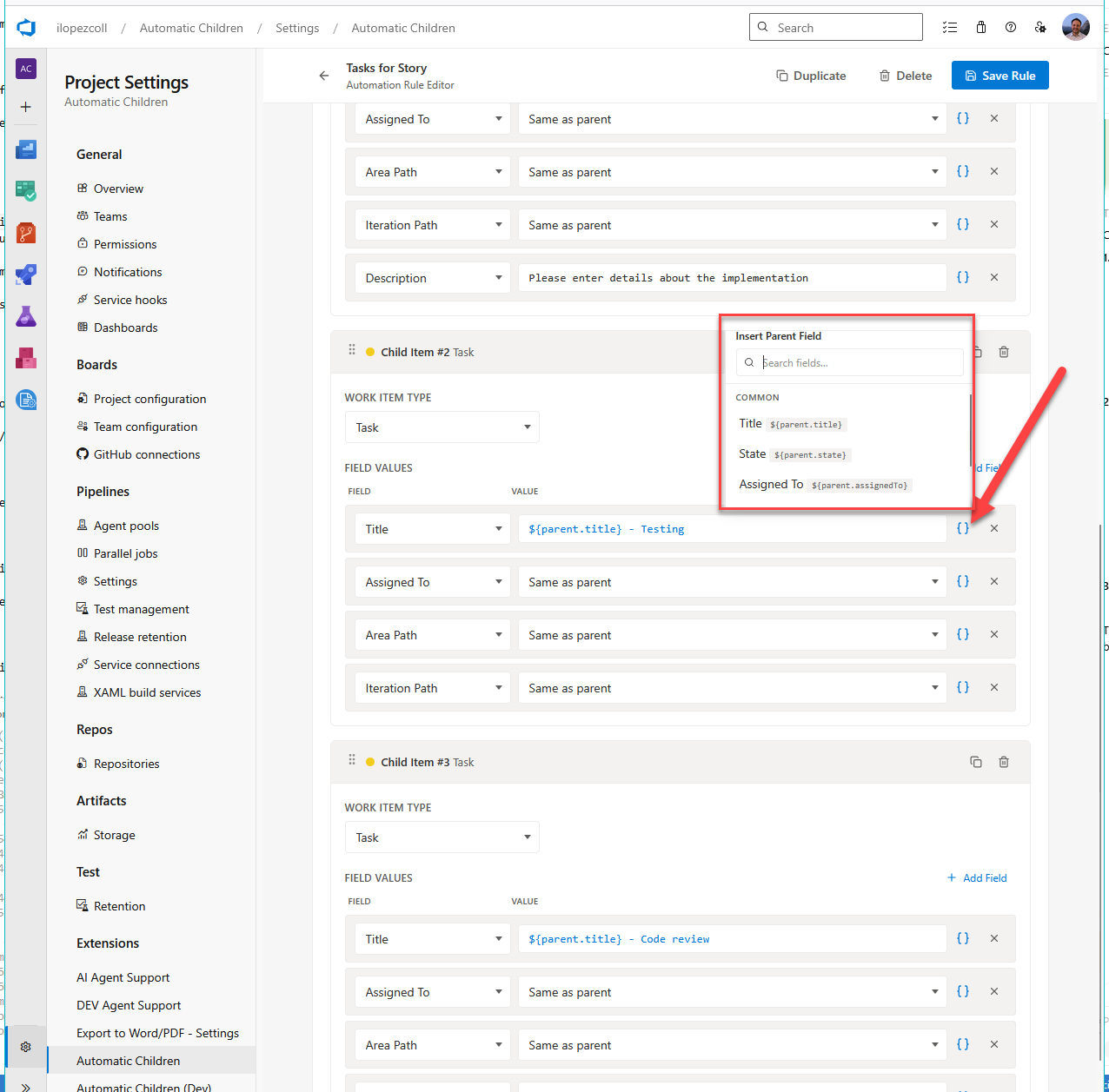
Tip: The placeholder button is the fastest way to work with placeholders. No need to memorize field reference names — just click, search, and pick.
How placeholders work
When you run Automatic Child Items and the extension creates child work items, it goes through every field mapping and replaces each placeholder with the actual value from the parent work item.
- If the parent has a value for that field, the placeholder is replaced with that value.
- If the parent’s field is empty or not set, the placeholder is replaced with an empty string (blank). No error is shown — the child field is just left empty.
Identity fields
For identity fields like Assigned To, Changed By, and Created By, the placeholder resolves to the person’s display name (e.g., “Jane Smith”). This works well for text fields like Title or Description. For identity-specific fields (like the Assigned To field on the child), you can use the “Same as parent” option in the field picker instead.
Syntax
Placeholders use double curly braces with the field’s reference name:
{{System.Title}}
{{System.AssignedTo}}
{{Microsoft.VSTS.Common.Priority}}
You can mix placeholders with regular text:
Task for {{System.Title}}Created from {{System.WorkItemType}} #{{System.Id}}: {{System.Title}}Available placeholders
Common fields
These are the fields you’ll use most often. They appear in the Common section of the placeholder dropdown.
| Dropdown label | What it inserts | Description |
|---|---|---|
| Title | {{System.Title}} | The parent work item’s title. |
| State | {{System.State}} | The parent’s current state (e.g., New, Active, Resolved). |
| Assigned To | {{System.AssignedTo}} | Who the parent is assigned to (display name). |
| Area Path | {{System.AreaPath}} | The parent’s area path. |
| Iteration Path | {{System.IterationPath}} | The parent’s iteration path. |
Detail fields
These appear in the Details section of the placeholder dropdown.
| Dropdown label | What it inserts | Description |
|---|---|---|
| Priority | {{Microsoft.VSTS.Common.Priority}} | The parent’s priority (usually 1–4). |
| Tags | {{System.Tags}} | The parent’s tags. |
| Description | {{System.Description}} | The parent’s description (can be long text or HTML). |
| ID | {{System.Id}} | The parent’s work item ID number. |
| Reason | {{System.Reason}} | The parent’s state change reason. |
| Severity | {{Microsoft.VSTS.Common.Severity}} | The parent’s severity (typically used for Bugs). |
| Value Area | {{Microsoft.VSTS.Common.ValueArea}} | The parent’s value area (Business or Architectural). |
Custom fields
If your process has custom fields, you can use their reference name in a placeholder too. For example:
{{Custom.MyEstimate}}
{{MyProcess.RiskLevel}}
The field picker in the rule editor shows the reference name for every field, so you can always find the right name there. But again — the easiest way is to just use the placeholder button and pick from the dropdown.
”Same as parent” vs. placeholders
For certain field types — Area Path, Iteration Path, Assigned To, and State — the rule editor offers a “Same as parent” option in the value dropdown. This copies the parent’s value directly into the child without using placeholder syntax.
When should you use which?
- “Same as parent” — Use this for dropdown/picker fields where you want an exact copy. It’s the simplest option and works perfectly for fields like Area Path and Iteration Path.
- Placeholders — Use these when you want to embed the parent’s value inside a larger text string (like
Task for {{System.Title}}), or when you’re working with a text input field.
Both approaches get the value from the parent — they just work slightly differently under the hood.
Examples
Here are some practical ways to use placeholders:
Child Title:
Review: {{System.Title}}Creates a child with a title like “Review: Implement login page.”
Child Description:
This task was created from {{System.WorkItemType}} #{{System.Id}}: {{System.Title}}.
Assigned originally to {{System.AssignedTo}}.
Child Title with priority context:
[P{{Microsoft.VSTS.Common.Priority}}] {{System.Title}} - ImplementationCreates something like “[P1] Implement login page - Implementation.”
Summary
| Concept | Details |
|---|---|
| Syntax | {{FieldReferenceName}} — double curly braces with the field’s internal name. |
| Placeholder button | Click the {} button on any field row to pick from a searchable dropdown — no memorizing needed. |
| Empty fields | If the parent field is empty, the placeholder resolves to blank. |
| Identity fields | Resolve to the person’s display name. |
| Custom fields | Use the field’s reference name (visible in the field picker). |
| ”Same as parent” | A shortcut for Area Path, Iteration Path, Assigned To, and State. |