General Rules
General rules are the foundation of Automatic Children. Each general rule tells the extension: “When I run this on a specific kind of work item, create these child work items with these field values.” You configure them once, and then use them over and over again from any matching work item.
This page covers everything you need to know about general rules — from creating them to understanding every option available.
What is a general rule?
A general rule has two parts:
- Trigger conditions — What kind of parent work item should this rule apply to? You pick the work item type (like Epic, User Story, or Bug), optionally filter by state, and optionally add field conditions for more control.
- Child work items — What should the extension create? You define one or more child work items, each with its own type and field values. You can use placeholders to pull values from the parent automatically.
When you run Automatic Child Items from a work item’s context menu, the extension checks all your enabled general rules, finds the ones that match, and shows you a preview of what it would create. You then decide whether to go ahead.
Creating a general rule
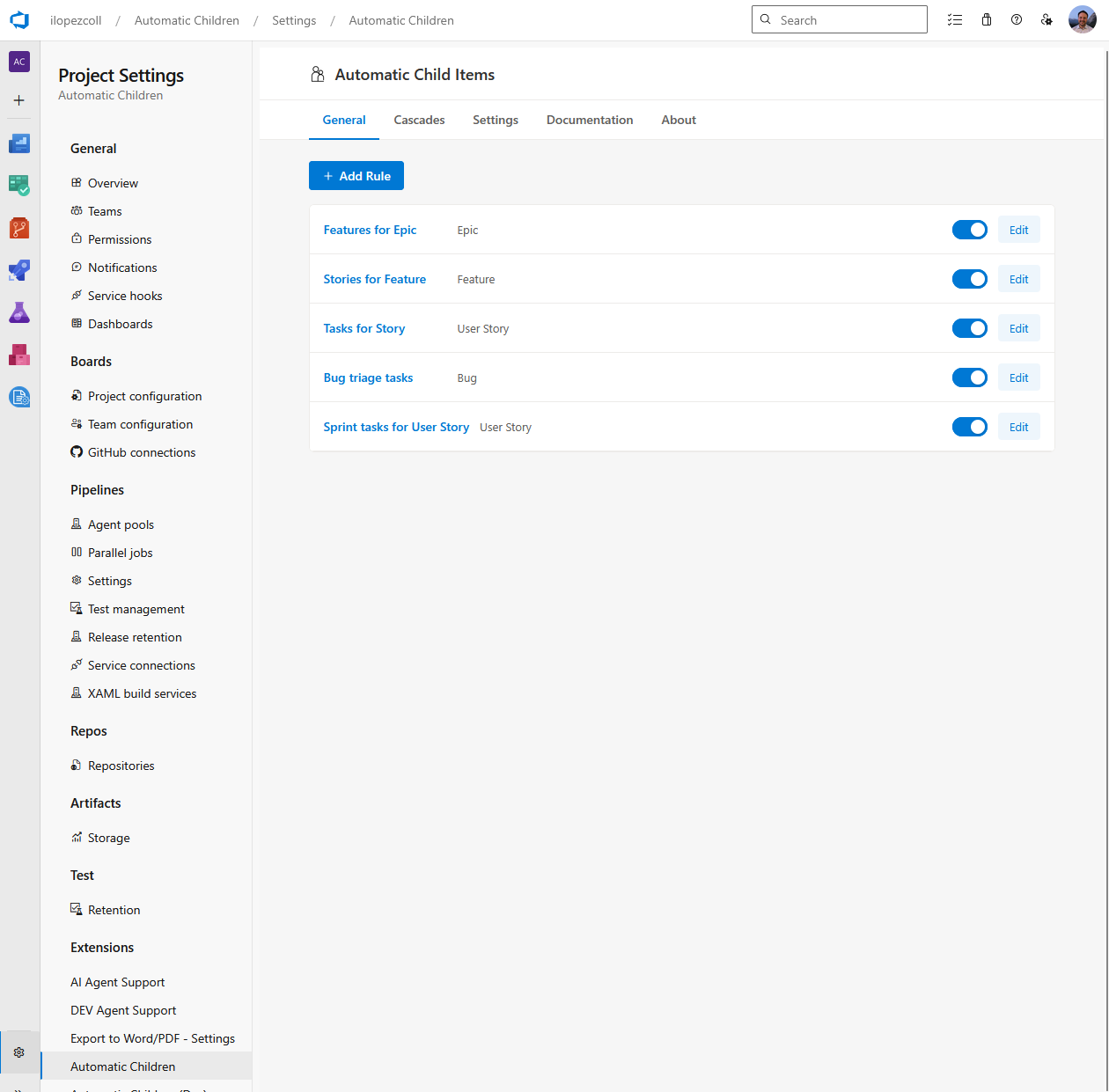
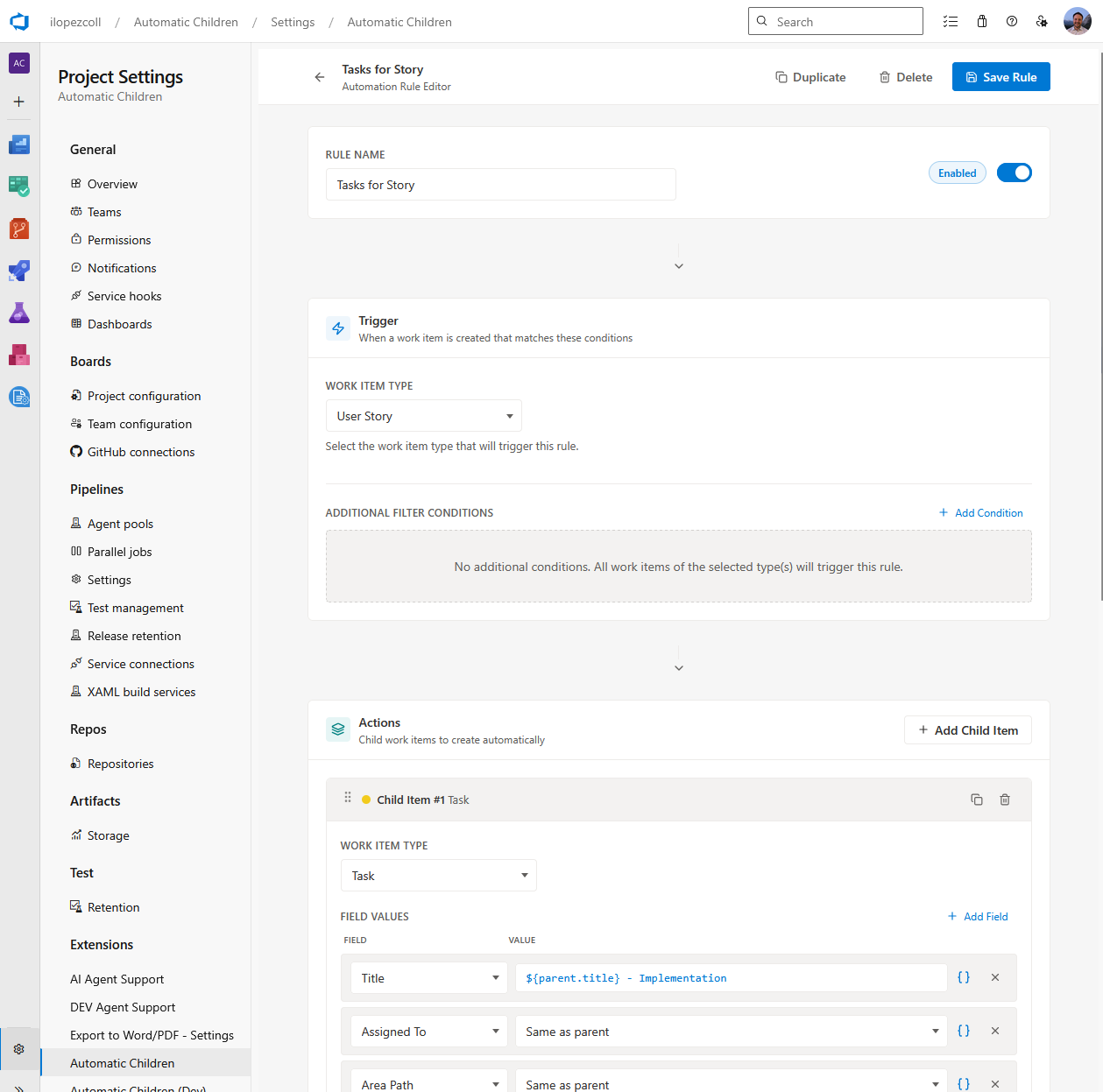
To create a new general rule, go to Project Settings > Automatic Children, open the General tab, and click Add Rule. This opens the rule editor.
Rule name
Give your rule a clear, descriptive name that tells you at a glance what it does. Something like:
- “Tasks for User Story”
- “Bug triage checklist”
- “Auto-create subtasks for new Epics”
The name is just for your reference — it doesn’t affect how the rule runs.
Enable / Disable
Each rule has an Enabled / Disabled toggle. Only enabled rules are evaluated when you run the extension from a work item. Disabling a rule keeps the configuration intact without running it — handy for seasonal workflows, testing, or temporarily pausing a rule.
You can toggle a rule on or off both from the rule editor and from the rule list.
If you’re on the free trial, you can enable up to 3 general rules per project. Any rules beyond the limit will be automatically disabled. Upgrade your plan in Organization Settings to remove this limit.
Trigger conditions
The trigger section defines when a general rule applies. You’ll see it labeled as “When a work item matches these conditions.”
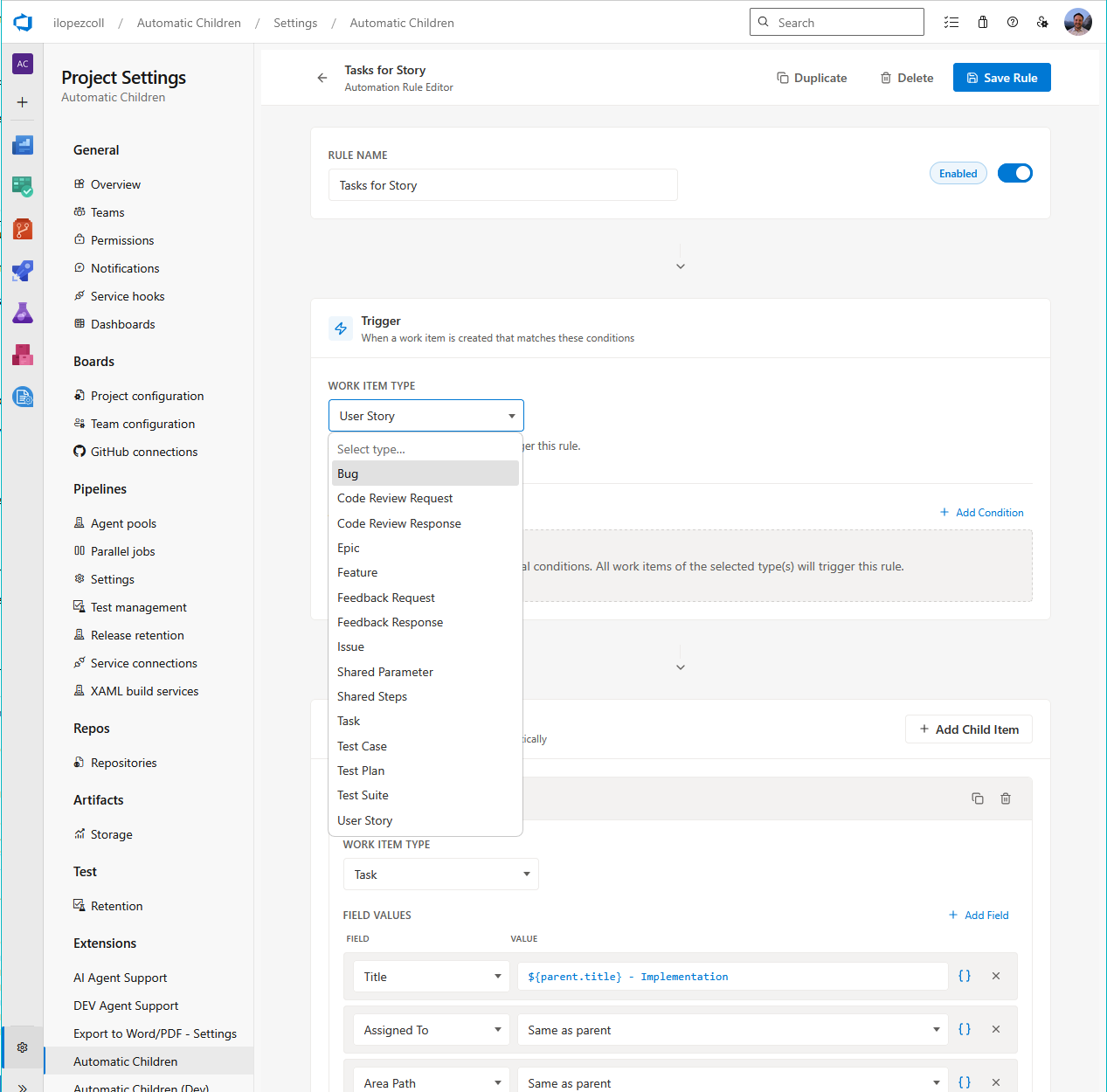
Work item types
Pick one or more work item types that this rule should match. For example, if you select User Story, the rule will only apply when you run the extension on a User Story.
You can select multiple types if the same rule should apply to different kinds of work items (for example, both User Story and Bug).
States (optional)
You can optionally filter by state. If you select one or more states (like New, Active, or Resolved), the rule will only match work items that are currently in one of those states.
If you leave the state filter empty, the rule matches work items in any state.
Field condition groups (optional)
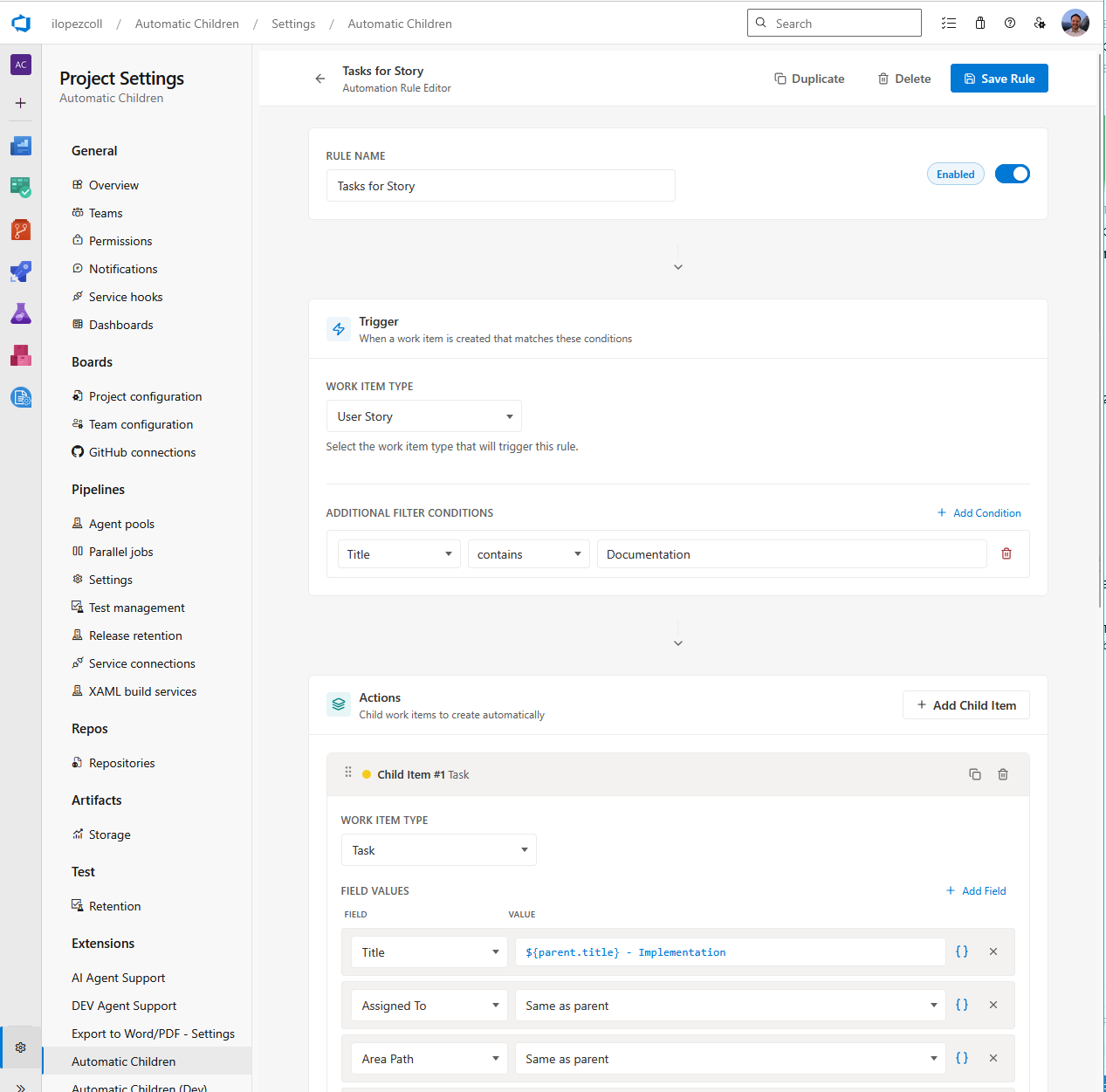
For more advanced filtering, you can add field condition groups. These let you check specific field values on the parent work item before the rule applies.
Each condition group contains one or more conditions. Here’s how they work together:
- Within a group: All conditions must be true (they are combined with AND). For example: “Area Path equals Backend” AND “Priority is not empty.”
- Between groups: At least one group must match (groups are combined with OR). For example: Group 1 matches Backend items, Group 2 matches Frontend items — if either group matches, the rule applies.
To add conditions, click Add Condition within a group. For each condition, you pick:
- Field — Choose from any field available on the work item (like Area Path, Priority, Tags, or any custom field). Use the field picker dropdown to find the field you need.
- Operator — How to compare the field’s value. See the full list of operators below.
- Value — The value to compare against (not needed for “is empty” and “is not empty”).
Condition operators
Here are all the operators you can use in field conditions:
| Operator | What it does | Needs a value? |
|---|---|---|
| equals | The field must exactly match the value. | Yes |
| does not equal | The field must not match the value. | Yes |
| contains | The field must contain the value as a substring. | Yes |
| does not contain | The field must not contain the value. | Yes |
| starts with | The field must start with the value. | Yes |
| is empty | The field must be blank or not set. | No |
| is not empty | The field must have some value. | No |
Some examples:
- Area Path equals
MyTeam\Backend— Only match work items in the Backend area. - Priority does not equal
4— Exclude low-priority items. - System.Title contains
[Urgent]— Only match work items with “[Urgent]” in the title. - System.AssignedTo is not empty — Only match work items that are assigned to someone.
Tip: Conditions inside a group are all required (AND logic). If you need “this OR that” logic, create separate condition groups — one for each alternative.
Child work items (Actions)
The actions section defines what the extension creates. You’ll see it labeled as “Child work items to create automatically.”
Each general rule can create one or more child work items. For example, a single rule could create a Design Task, a Development Task, and a Testing Task — all at once.
Adding a child work item
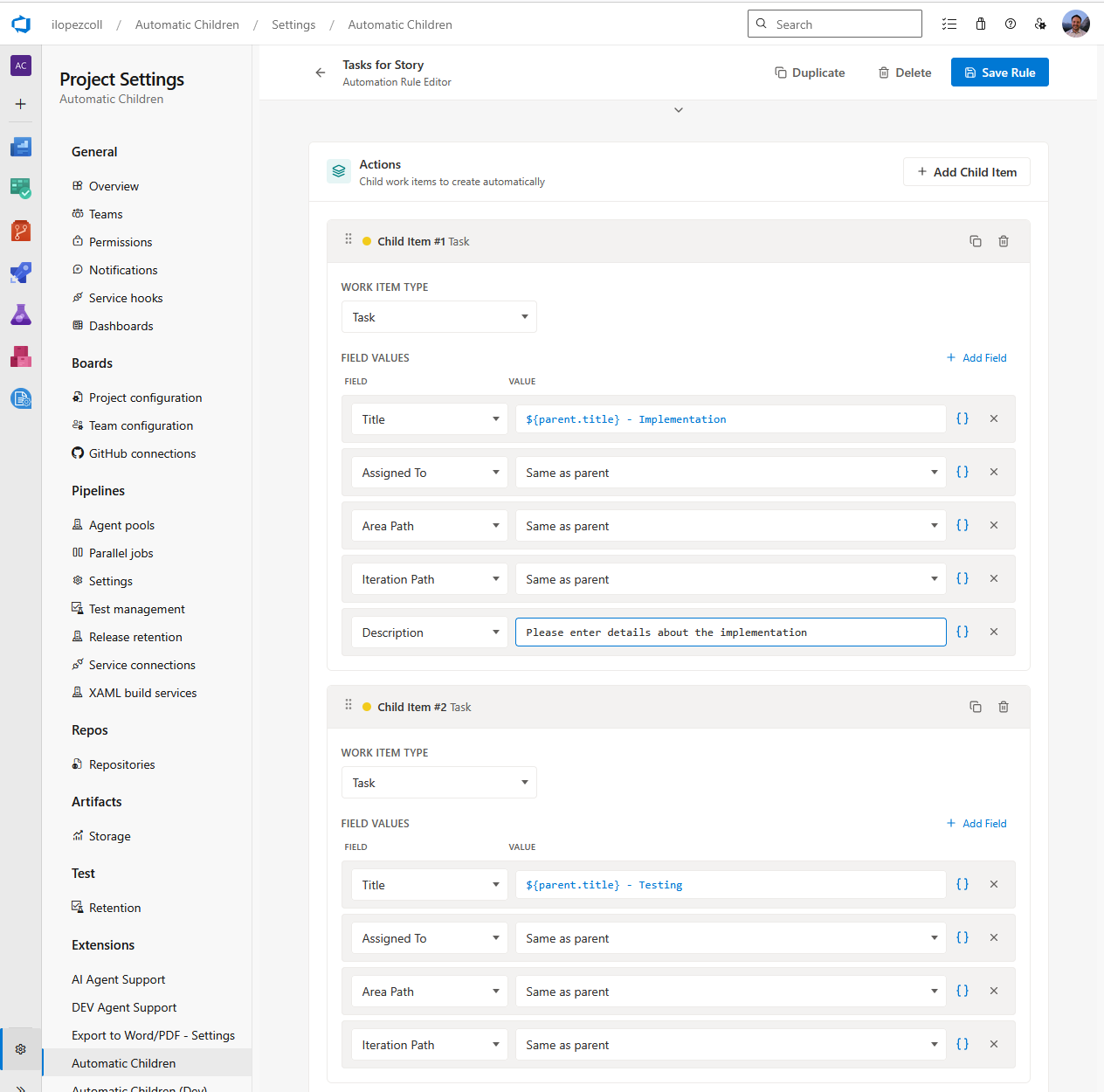
Click Add Child Item (or Add First Child Item if it’s the first one). You’ll need to configure:
- Child work item type — Pick the type of work item to create (like Task, Bug, or any type your process supports).
- Field mappings — Set the values for the child work item’s fields.
Screenshot placeholder: A child work item definition in the rule editor, showing the type selector set to “Task” and field mapping rows below it.
Field mappings
Field mappings tell the extension what values to put in each field of the new child work item. Each mapping is a row with:
- Field — A dropdown where you pick the child work item’s field (like Title, Description, Area Path, Priority, etc.). The dropdown shows all fields available for the selected child work item type.
- Value — What to put in that field. This can be:
- A literal value you type in (like “Design phase” or “3”).
- A placeholder that pulls a value from the parent work item (like
{{System.Title}}). - A mix of both (like
Task for {{System.Title}}).
The Title field is always required — it’s automatically added and cannot be removed. Other mandatory fields for your work item type may also be enforced.
The placeholder button
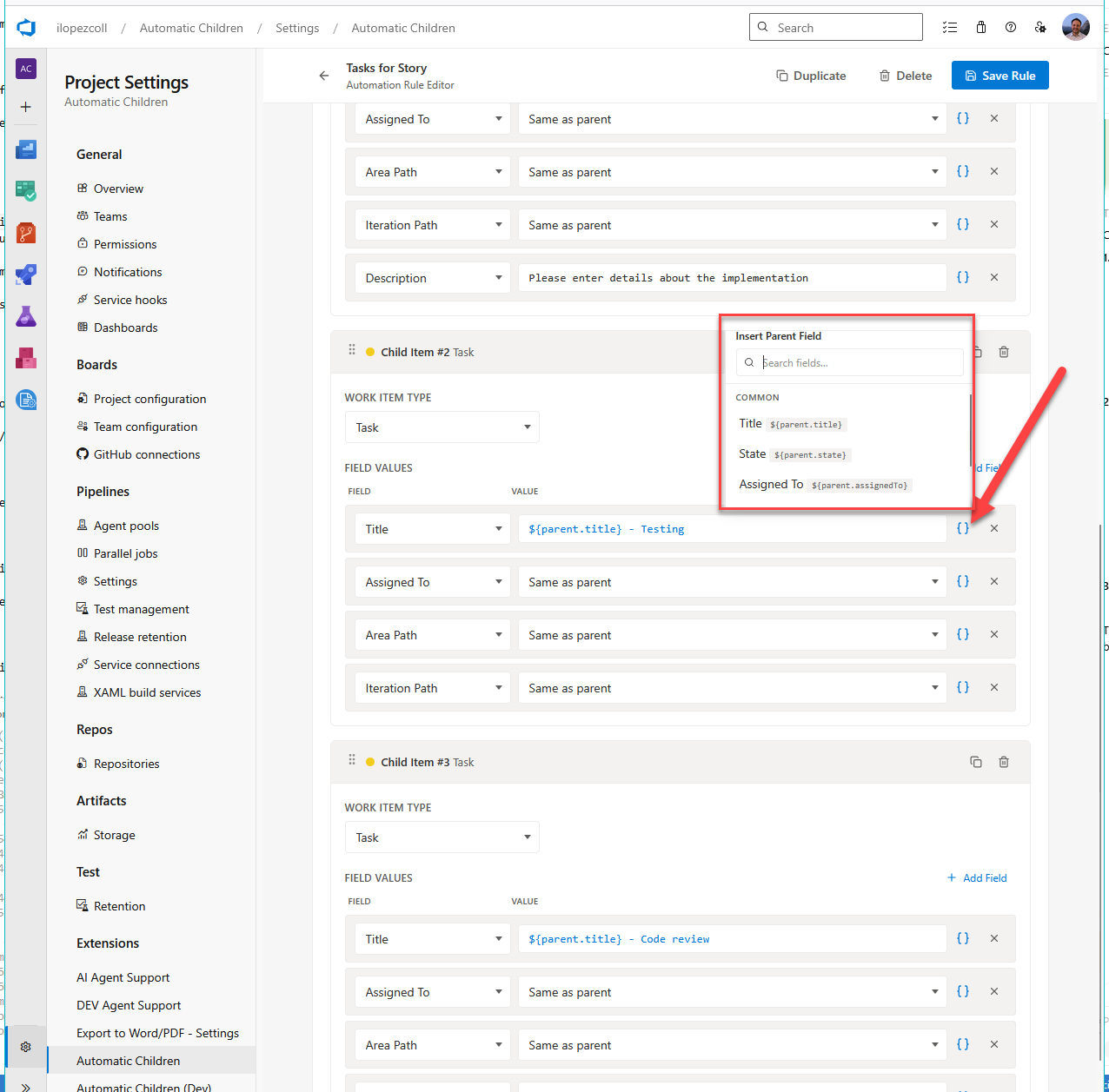
This is one of the most useful features in the rule editor. Each field mapping row has a placeholder button (it looks like curly braces {}). When you click it, a dropdown opens with all the parent fields you can reference.
The dropdown is organized into two sections:
Common fields:
| Label | What it inserts |
|---|---|
| Title | {{System.Title}} |
| State | {{System.State}} |
| Assigned To | {{System.AssignedTo}} |
| Area Path | {{System.AreaPath}} |
| Iteration Path | {{System.IterationPath}} |
Detail fields:
| Label | What it inserts |
|---|---|
| Priority | {{Microsoft.VSTS.Common.Priority}} |
| Tags | {{System.Tags}} |
| Description | {{System.Description}} |
| ID | {{System.Id}} |
| Reason | {{System.Reason}} |
| Severity | {{Microsoft.VSTS.Common.Severity}} |
| Value Area | {{Microsoft.VSTS.Common.ValueArea}} |
You can also search the list to quickly find what you need. The big advantage here is that you don’t have to memorize any field reference names — just click the button, pick the field, and the placeholder is inserted for you.
“Same as parent” option
For certain field types — like Area Path, Iteration Path, Assigned To, and State — the value dropdown includes a special “Same as parent” option. Selecting this copies the parent work item’s value directly into the child, without you needing to type a placeholder manually.
This is especially useful for fields like Area Path and Iteration Path, where you almost always want the child to inherit the parent’s value.
Value types
Depending on the field you select, the value control adapts to the right input type:
- Text fields — A regular text input where you can type values and insert placeholders.
- Identity fields (like Assigned To) — An identity picker that lets you search for people, or choose “Same as parent.”
- Area Path / Iteration Path — A path picker showing your project’s classification tree, or “Same as parent.”
- State — A dropdown of valid states for the child work item type.
- Picklist fields — A dropdown of allowed values (if the field has a predefined list).
- Number fields — A text input that validates for whole numbers or decimals.
- Date fields — A text input that validates for valid dates.
- Boolean fields — Accepts true/false, yes/no, or 1/0.
Adding more fields
Click Add Field to add another field mapping row. You can add as many as you need. To remove a field mapping, click the remove button on that row (mandatory fields like Title can’t be removed).
Multiple child work items
You’re not limited to one child. Click Add Child Item again to add a second, third, or more child work item definitions to the same rule. Each one can have a different type and different field mappings.
For example, a single general rule for a User Story could create:
- A “Design” Task
- A “Development” Task
- A “Testing” Task
- A “Documentation” Task
All four would be created at once when you run the rule.
Managing general rules
The rule list
On the General tab, you’ll see all your general rules listed with:
- The rule name.
- A summary of its conditions (which work item types it applies to).
- An enable/disable toggle so you can quickly turn rules on or off.
- An Edit button to open the rule editor.
Editing a rule
Click Edit on any rule to reopen the rule editor. Change whatever you need and save. Your changes take effect immediately the next time you run the extension.
Deleting a rule
You can delete rules you no longer need. Be careful — if a cascade references a rule you delete, that cascade will become invalid (the extension validates this).
Enabling and disabling
As mentioned, only enabled rules run when you trigger the extension. Disabling a rule is a non-destructive way to pause it. Keep in mind:
- If you disable a general rule that is used in a cascade, the cascade will also be disabled.
- On the free trial, only the first 3 enabled general rules are allowed. If you go over the limit, extra rules are automatically disabled.
Validation
When you save a general rule, the extension checks a few things:
- At least one child work item must be defined.
- The Title field must be present in the field mappings (it’s required for every child).
- Field values are validated based on the field type — for example, a number field must contain a valid number, a date field must be a valid date, and so on.
- If a value contains only a placeholder (like
{{System.Title}}), strict validation is skipped — the actual value will come from the parent at runtime.
If something is wrong, the editor will let you know what needs to be fixed before you can save.
Preview and duplicate detection
When you run Automatic Child Items from a work item, the extension evaluates all enabled general rules and shows you a preview of what would be created. The preview shows:
- Which rules matched the work item.
- The child work items each rule would create, with their field values resolved (placeholders replaced with actual parent values).
Duplicate detection
If a child work item with the same type and title already exists as a child of the parent, the extension flags it as a duplicate. You’ll see a warning in the preview. You can still create it if you want, but this helps you avoid accidentally creating the same work items twice.
There’s also an “Only missing” toggle on each rule in the preview. When enabled, it automatically skips child items that already exist — so only truly new items are created.
Export and import
You can export your general rules (and cascades) as a JSON file and import them into another project. This is useful for:
- Backing up your configuration.
- Copying rules from one project to another.
- Sharing rule templates with your team.
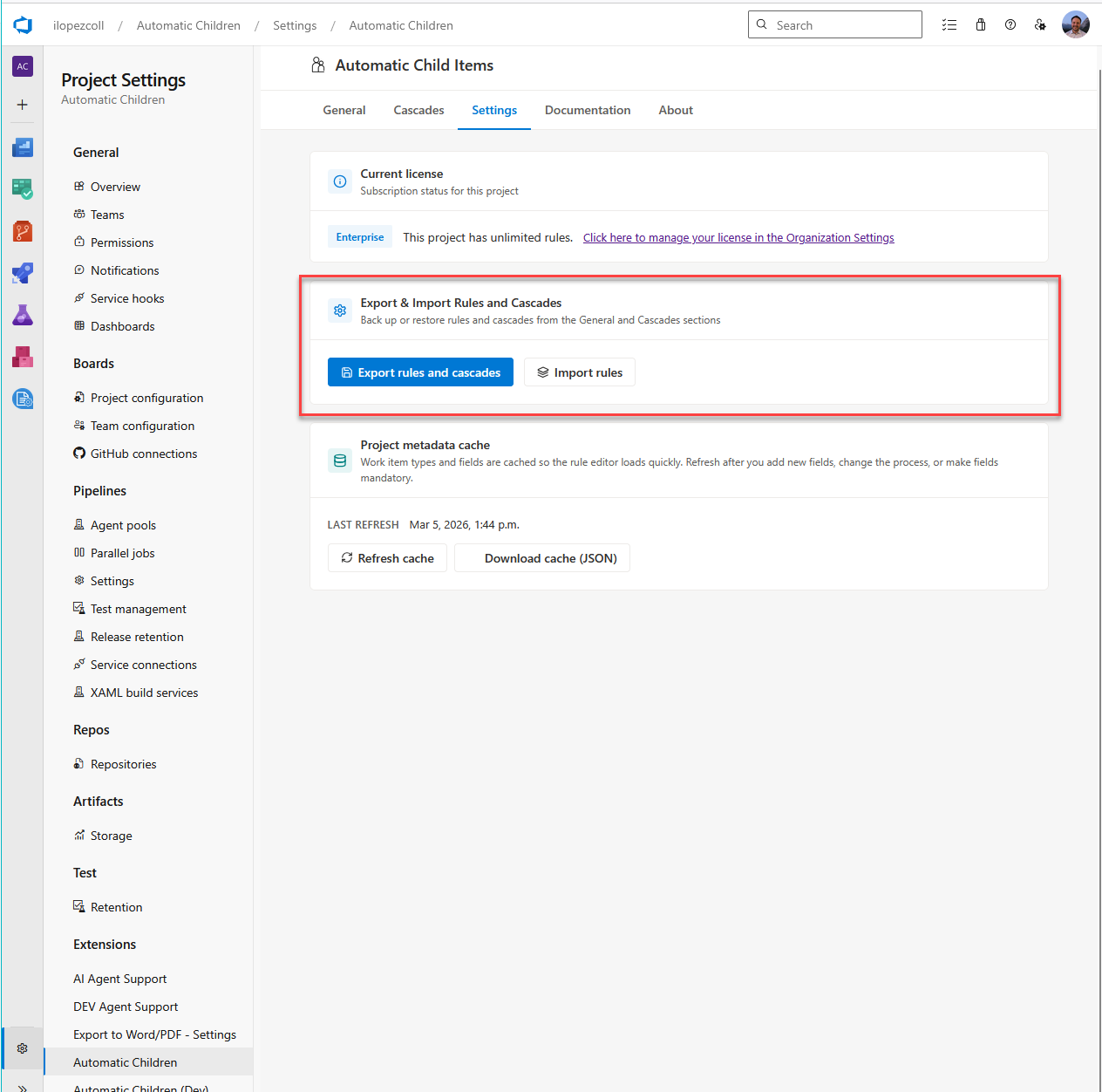
You’ll find the Export and Import buttons in the Settings tab of Project Settings > Automatic Children. The exported file includes all rules and cascades for the project.
When importing, the extension validates the file and warns you about duplicates (rules with the same name) or unresolved cascade references (cascades that point to rules not present in the import).
Refreshing the metadata cache
The extension caches information about your project’s work item types, fields, states, and classification paths to keep the rule editor fast and responsive. If you make changes to your process (like adding new fields, changing work item types, or updating area/iteration paths), click Refresh project metadata cache in the Settings tab so the rule editor picks up the latest information.
Summary
| Part | Description |
|---|---|
| Name | A descriptive label for the rule (for your reference only). |
| Enabled | Only enabled rules run. Toggle on or off at any time. |
| Work item types | Which parent types this rule applies to (required). |
| States | Optional filter by parent state. |
| Field conditions | Optional advanced filters on parent fields (AND within groups, OR between groups). |
| Child work items | One or more child definitions, each with a type and field mappings. |
| Placeholders | Use {{FieldRef}} or the placeholder button to copy values from the parent. |
| Duplicate detection | Warns if a child with the same type and title already exists. |